

Help Center How-To Guides
How to use automation templates
Skip the blank canvas and ship in minutes with Botyoo's pre-built automation templates.
On this page
How to use automation templates
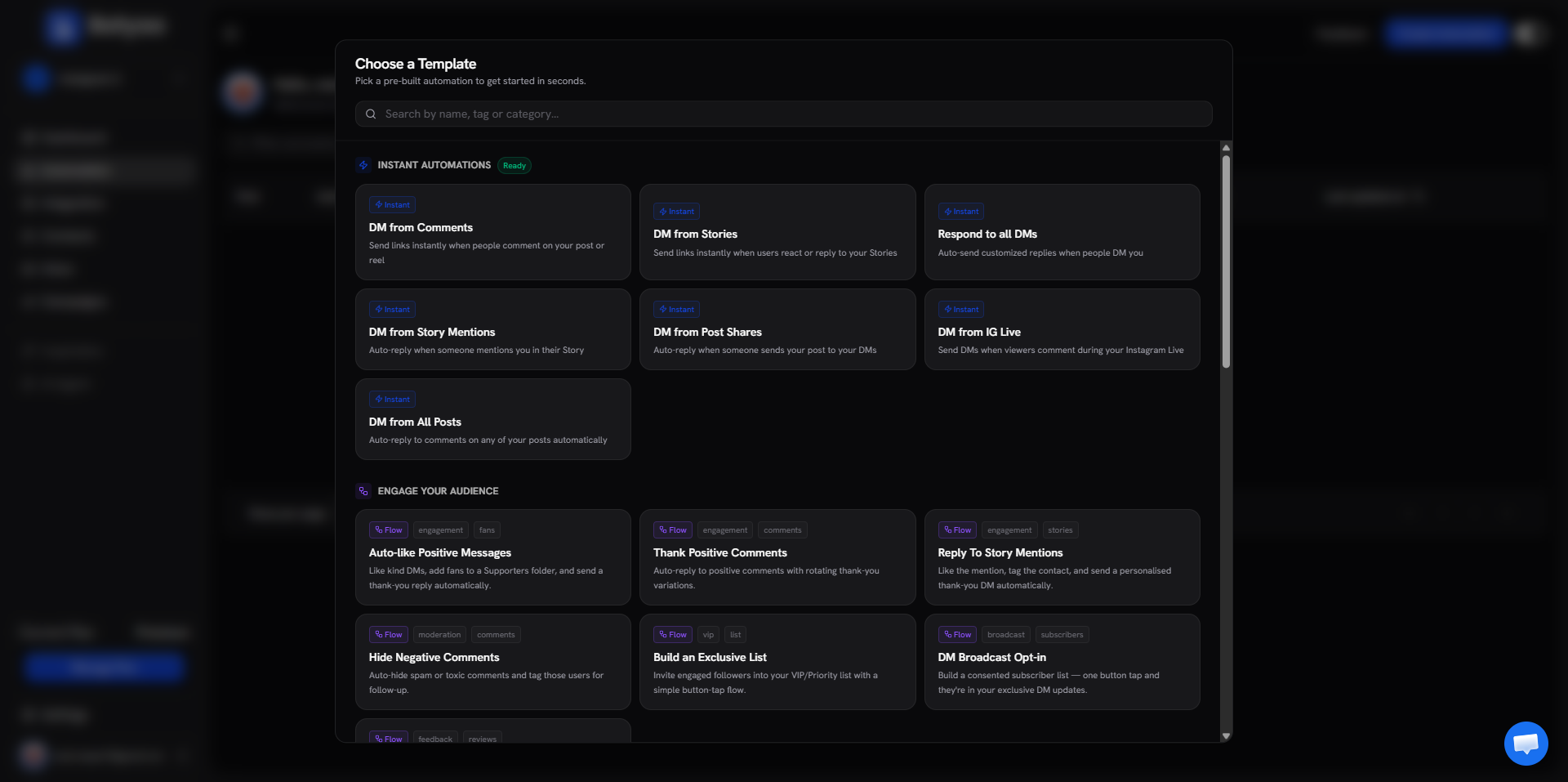
Botyoo ships 30+ templates across five categories, Instant, Engage, Get Leads, Convert & Sell, and Grow Your Audience.
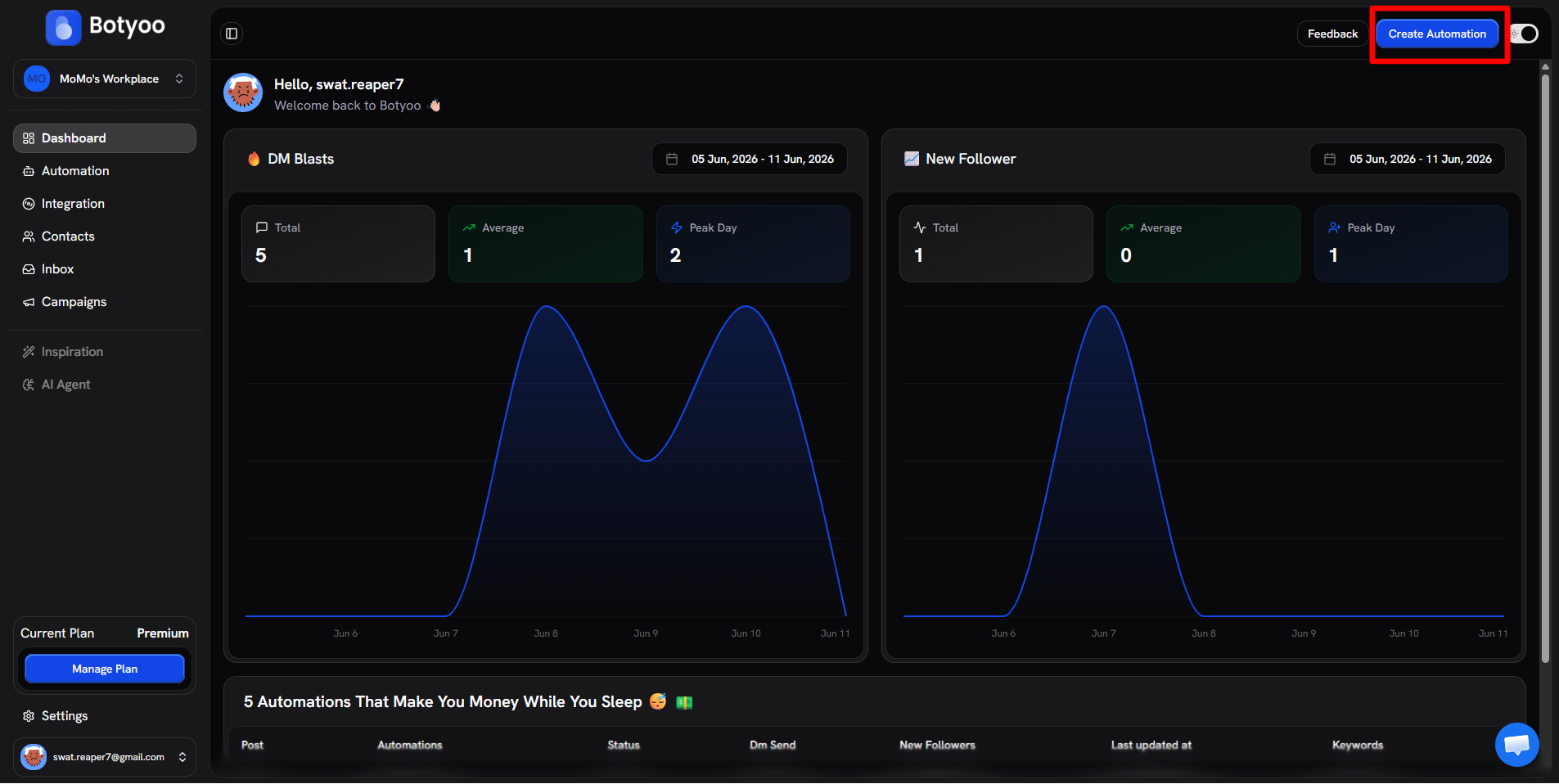
Step 1: Open the template picker
Click Create Automation in the top bar.
Step 2: Browse categories
The picker groups templates by goal. Each card has a description and tags so you can scan quickly.
Step 3: Pick a template
Click any template card. Each card shows the template name, a one-line description, and category tags (e.g. engagement, lead-gen, webinar) so you know what it does at a glance. Clicking opens the automation pre-configured with example settings.
Step 4: Customize
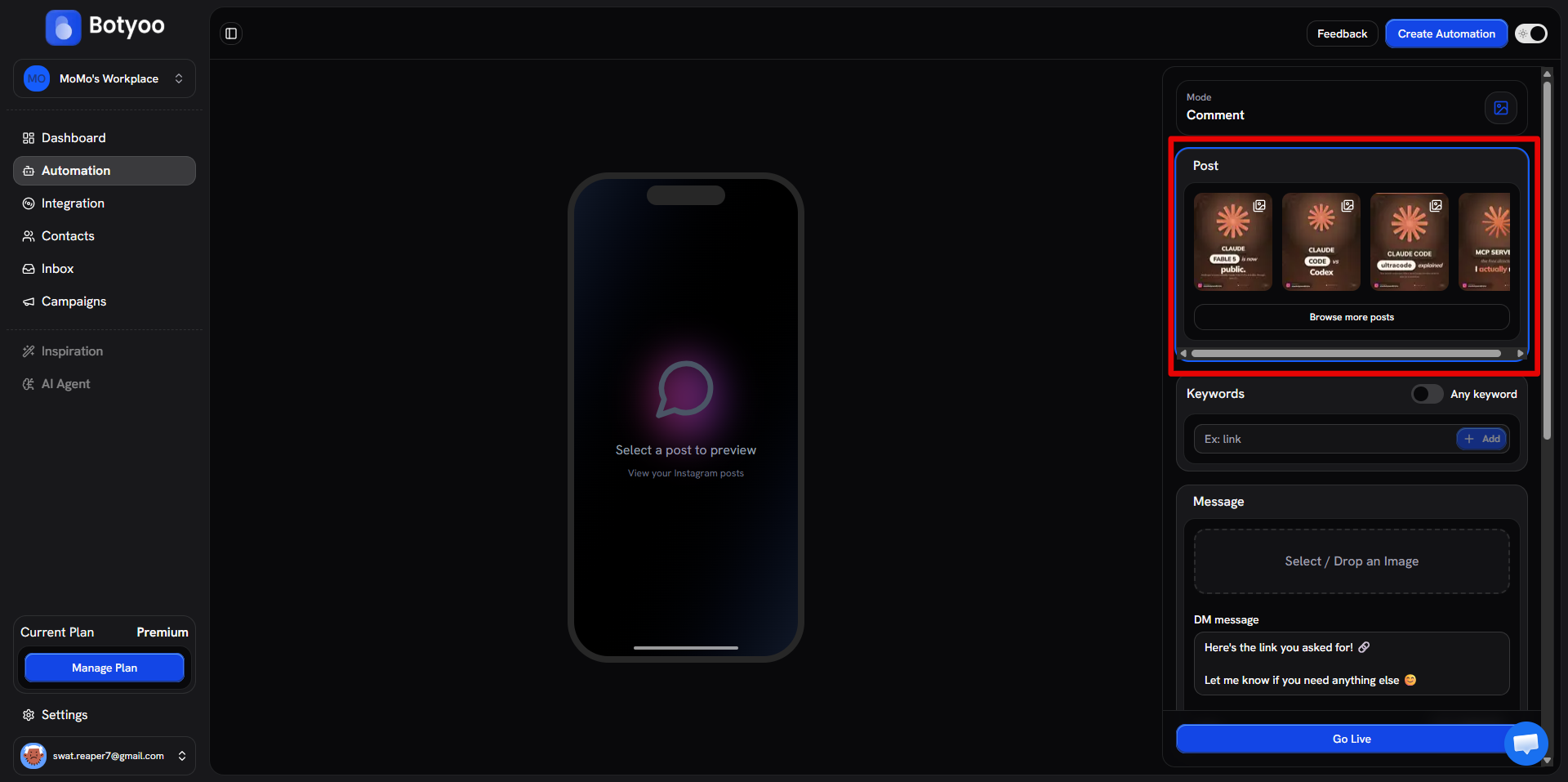
The template populates the fields. Edit:
- Post selection
- Keywords
- DM message text and image
- Follow Gate / Email Gate toggles
Step 5: Activate
Toggle the automation Active to ship.
Instant vs Flow templates
| Badge | What it means |
|---|---|
| ⚡ Instant | Single-trigger automation, form-based editor, includes built-in gates |
| 🔗 Flow | Multi-step visual flow, opens in the Flow Builder |
What’s next
Was this article helpful?