

Help Center How-To Guides
How to create an Inbox folder
Group conversations into custom folders like Supporters, VIP, or Applicant.
On this page
How to create an Inbox folder
Folders are reusable buckets for grouping contacts. They show up in the Inbox sidebar, as a destination in flow steps, and as a filter in campaign audiences.
Step 1: Open Inbox
Click Inbox in the sidebar.
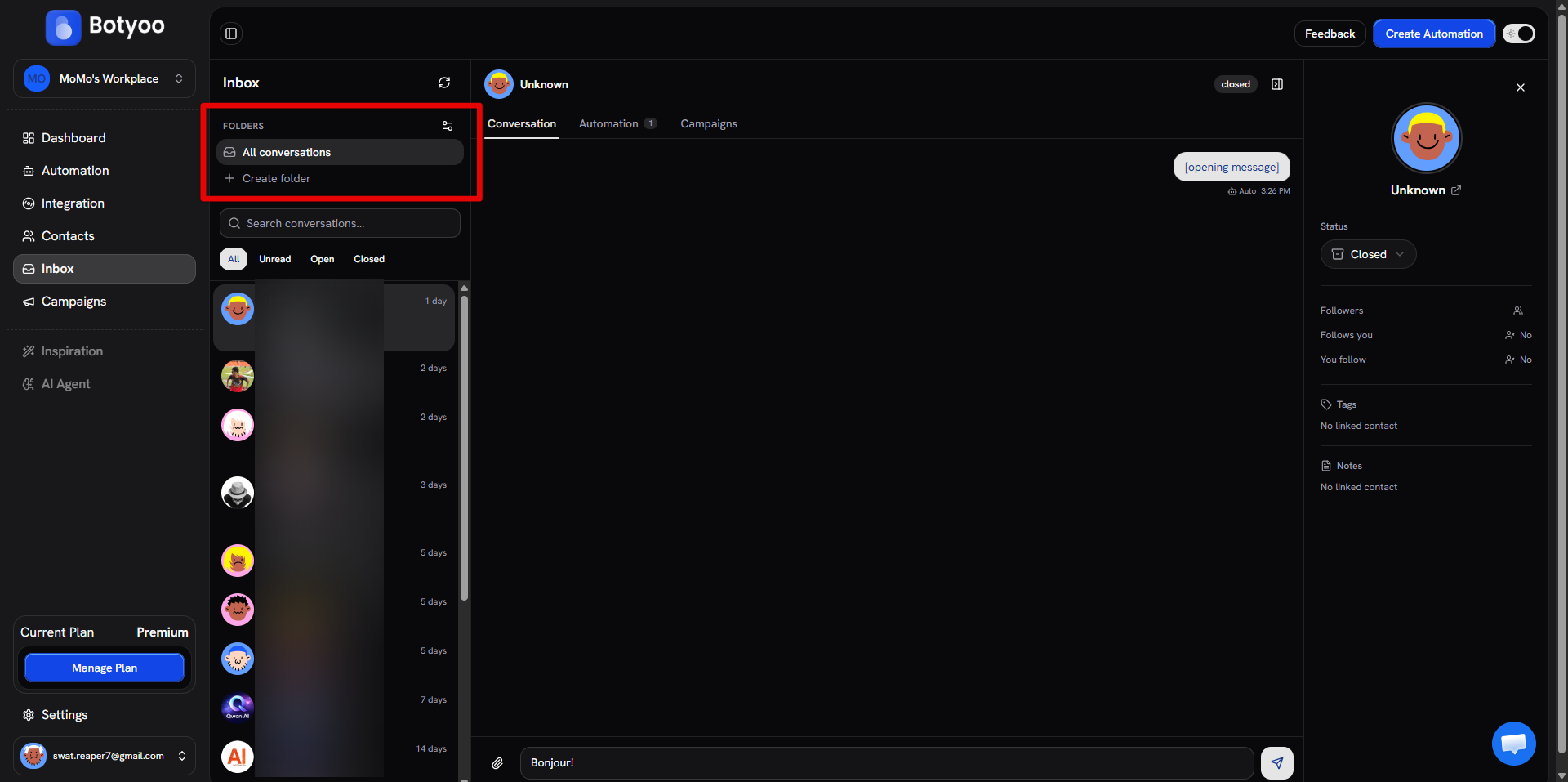
Step 2: Click “Create folder”
The Folders section at the top of the left rail has a + Create folder action.
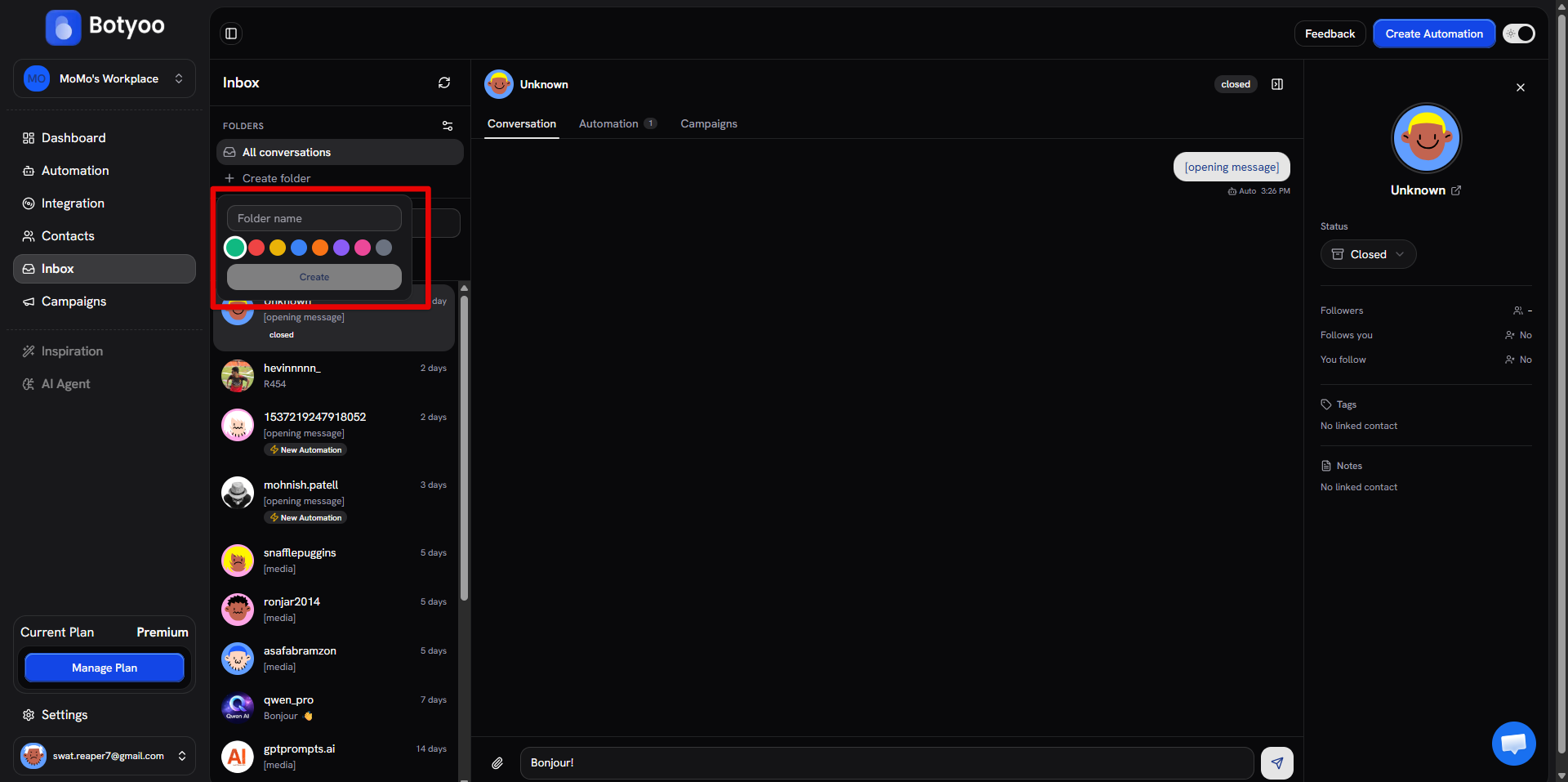
Step 3: Name the folder
Type a name (e.g. Supporters, VIP, Hot leads). Press Enter.
Step 4: Add conversations
There are three ways to add contacts to a folder:
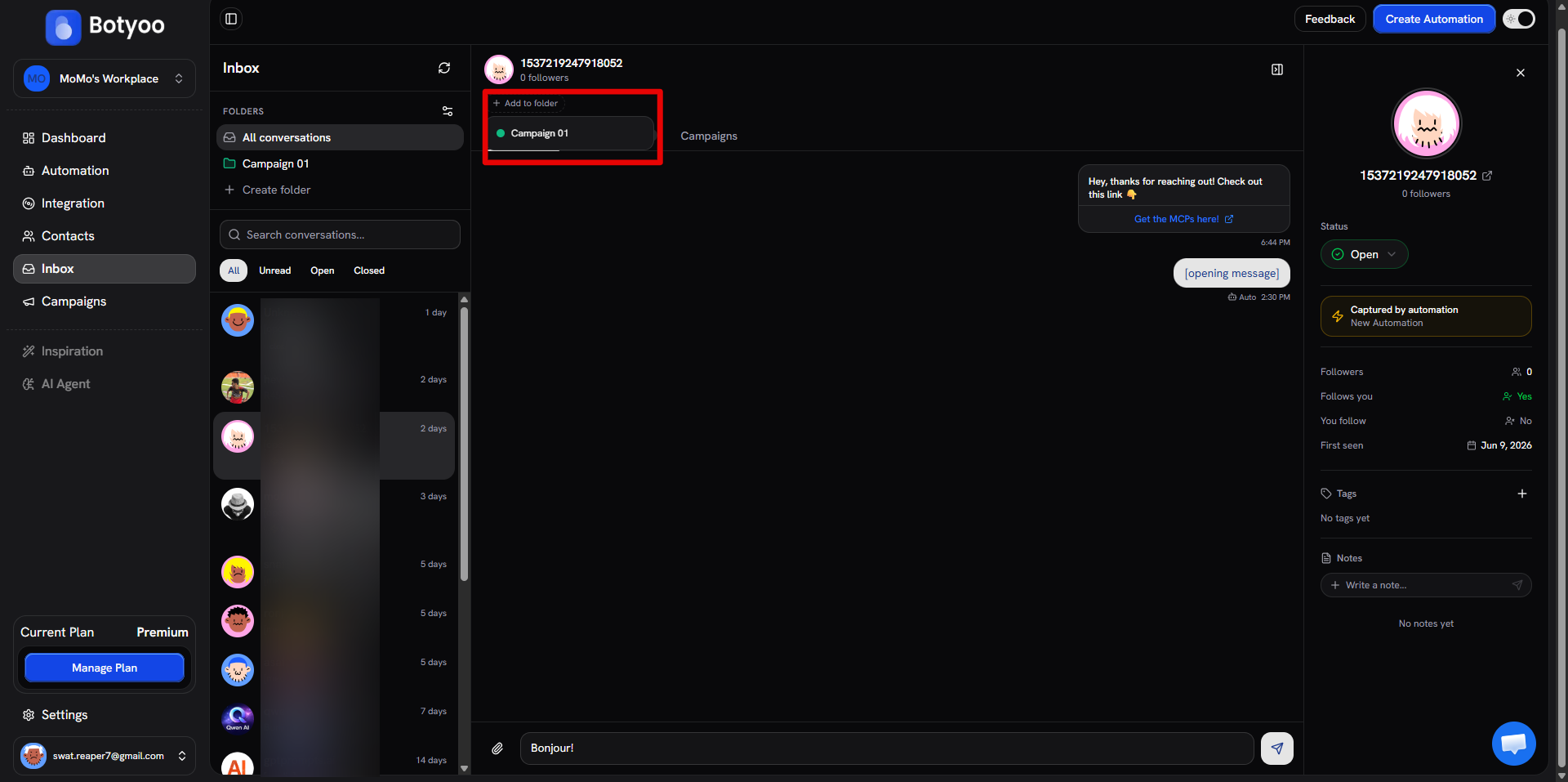
From a conversation
Open any conversation. In the header, click Add to folder and pick the folder.
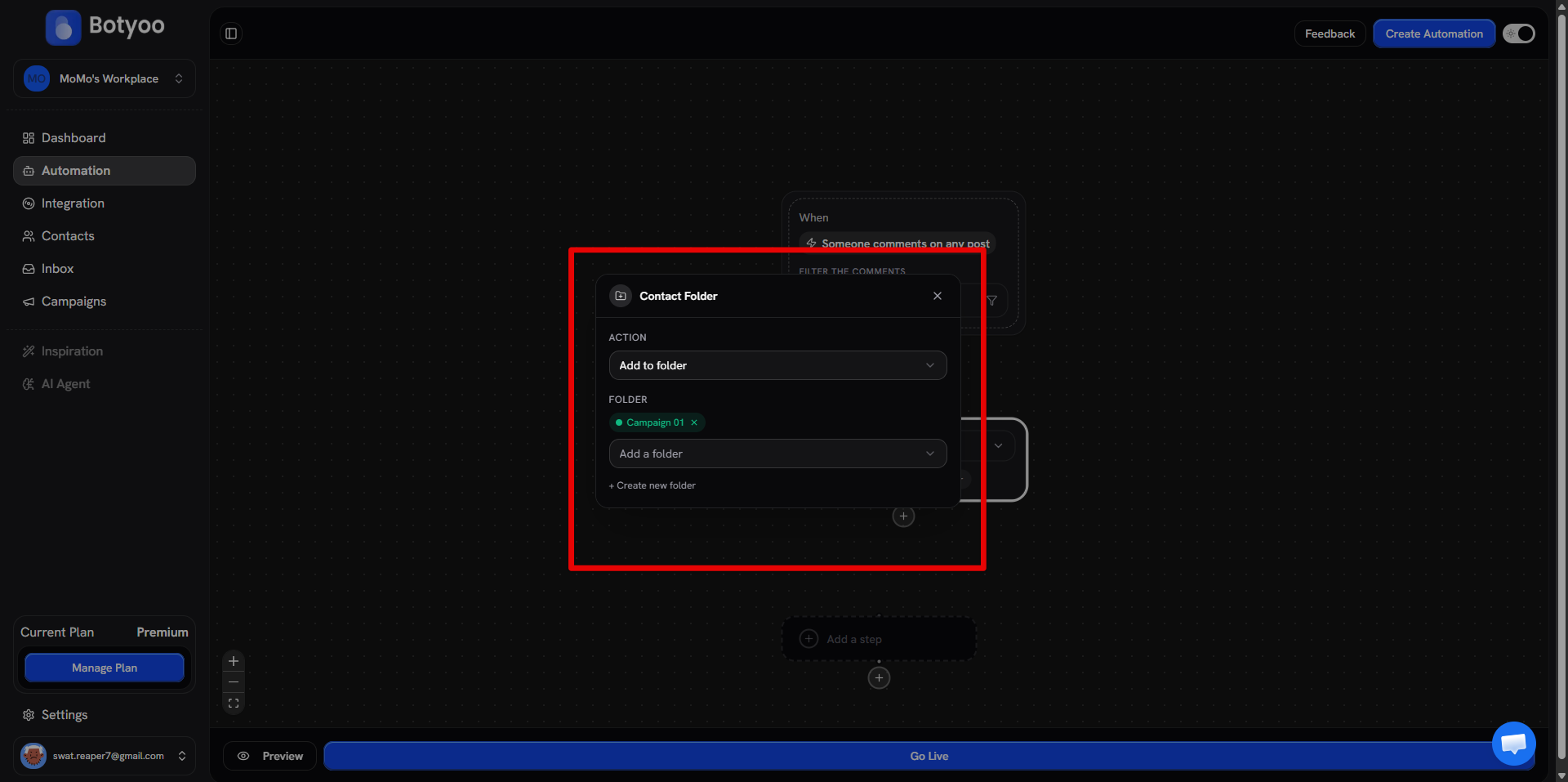
From a flow
Use the Add contact to folder(s) step inside any flow. Pick the folder.
From a contact in Contacts
The Contacts page links each contact to its tags and folders.
Step 5: Use the folder
Once a folder has contacts, you can:
- Filter the Inbox by clicking the folder in the left rail
- Target a Campaign audience by folder
- Reference the folder in conditional logic (rolling out)
What’s next
Was this article helpful?