

How to invite team members
Add teammates to your workspace so they can run automations, reply in the inbox, and manage campaigns.
On this page
How to invite team members
Workspace members see the same automations, contacts, inbox, and campaigns. Inviting one takes about ten seconds.
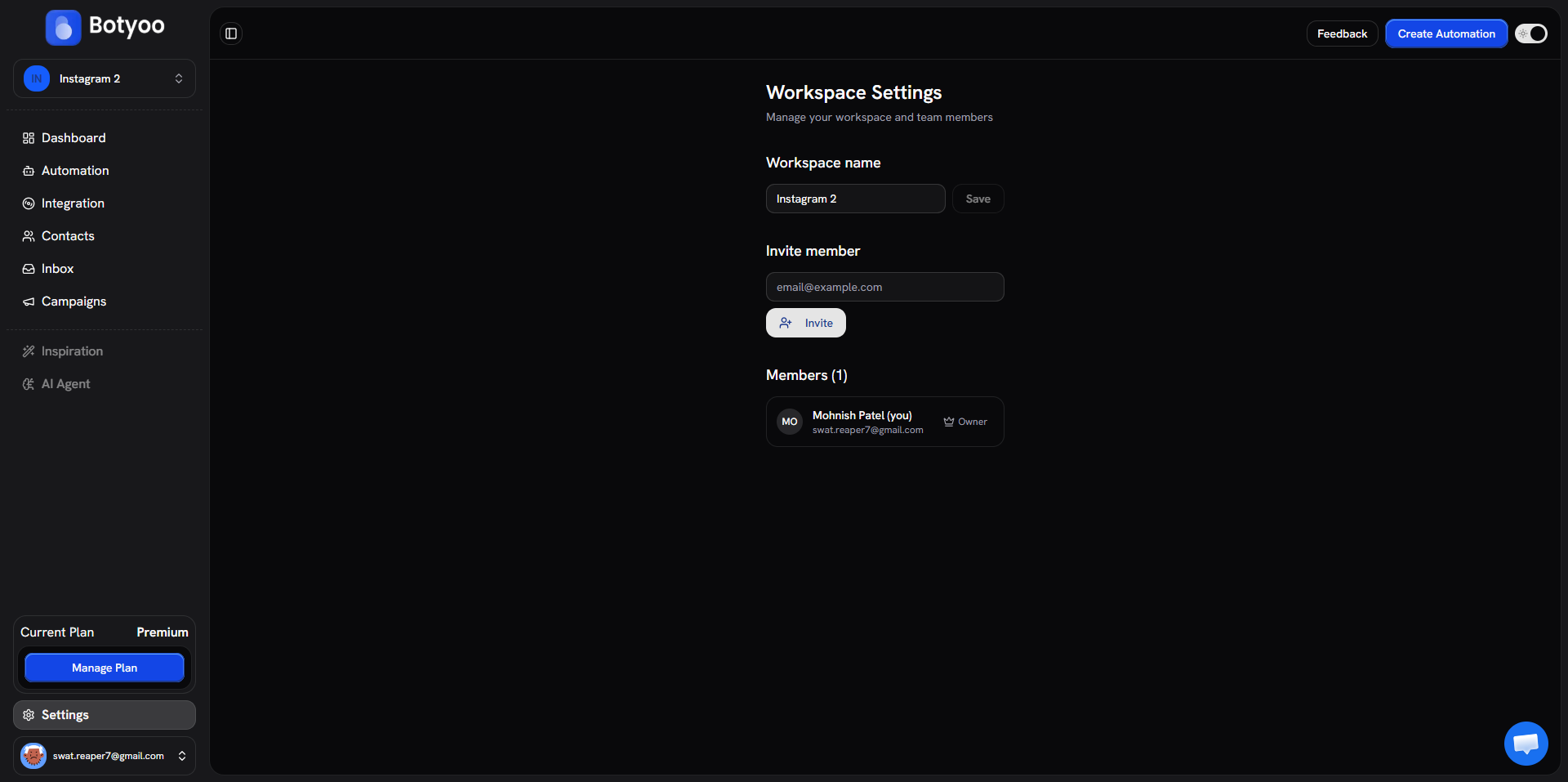
Step 1: Open Workspace settings
Click Settings at the bottom of the sidebar, then the Workspace tab.
Step 2: Enter their email
In the Invite member field, type the email address. Click Invite.
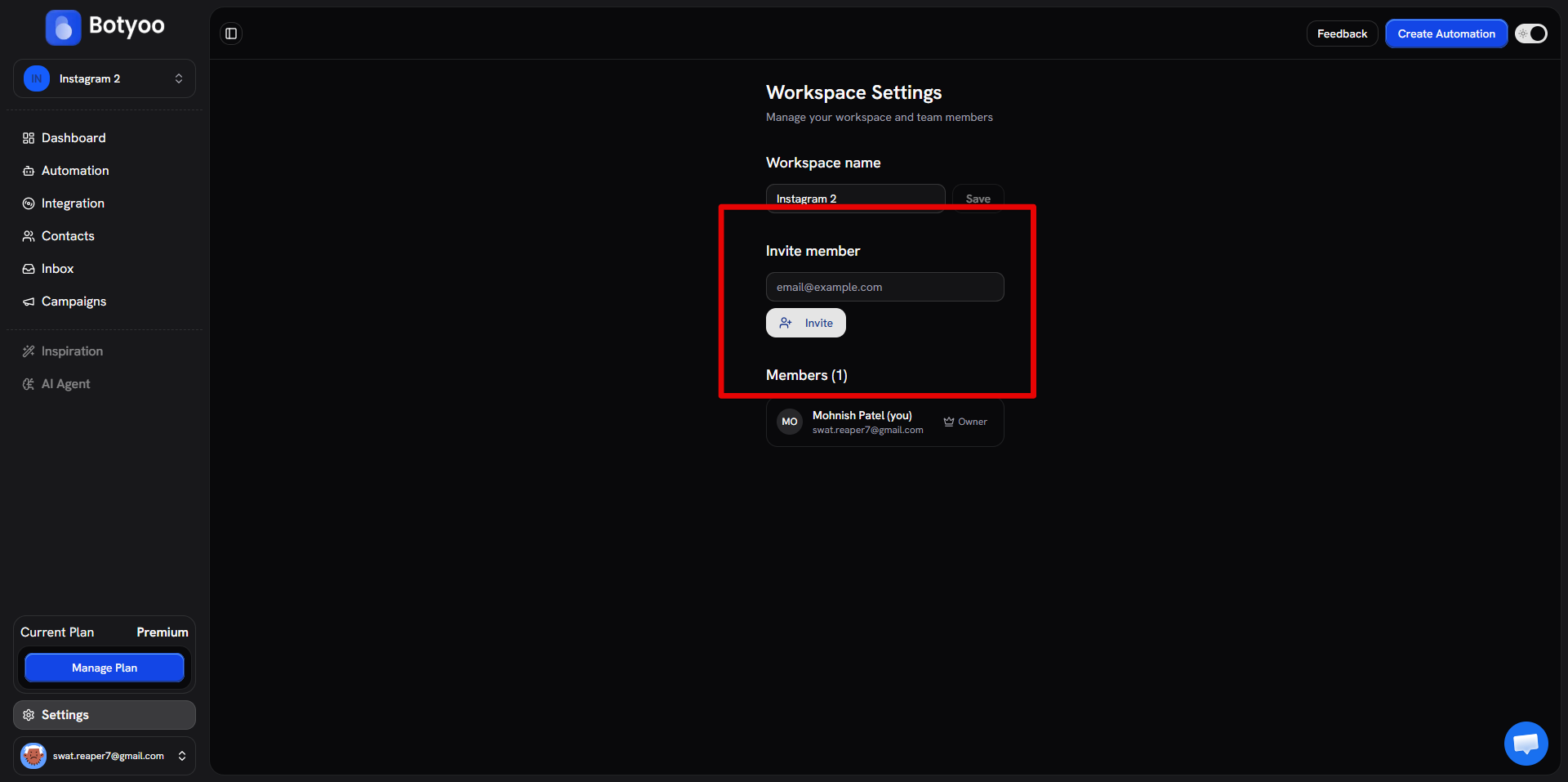
Step 3: They’re added instantly
Botyoo adds the teammate to your workspace the moment you hit Invite, no email confirmation step. The next time they sign in (or refresh, if they’re already signed in), the workspace appears in their workspace switcher.
Make sure the email you enter exactly matches the one they use to sign in to Botyoo. If they don’t have a Botyoo account yet, ask them to sign up first with the same email, then run the invite.
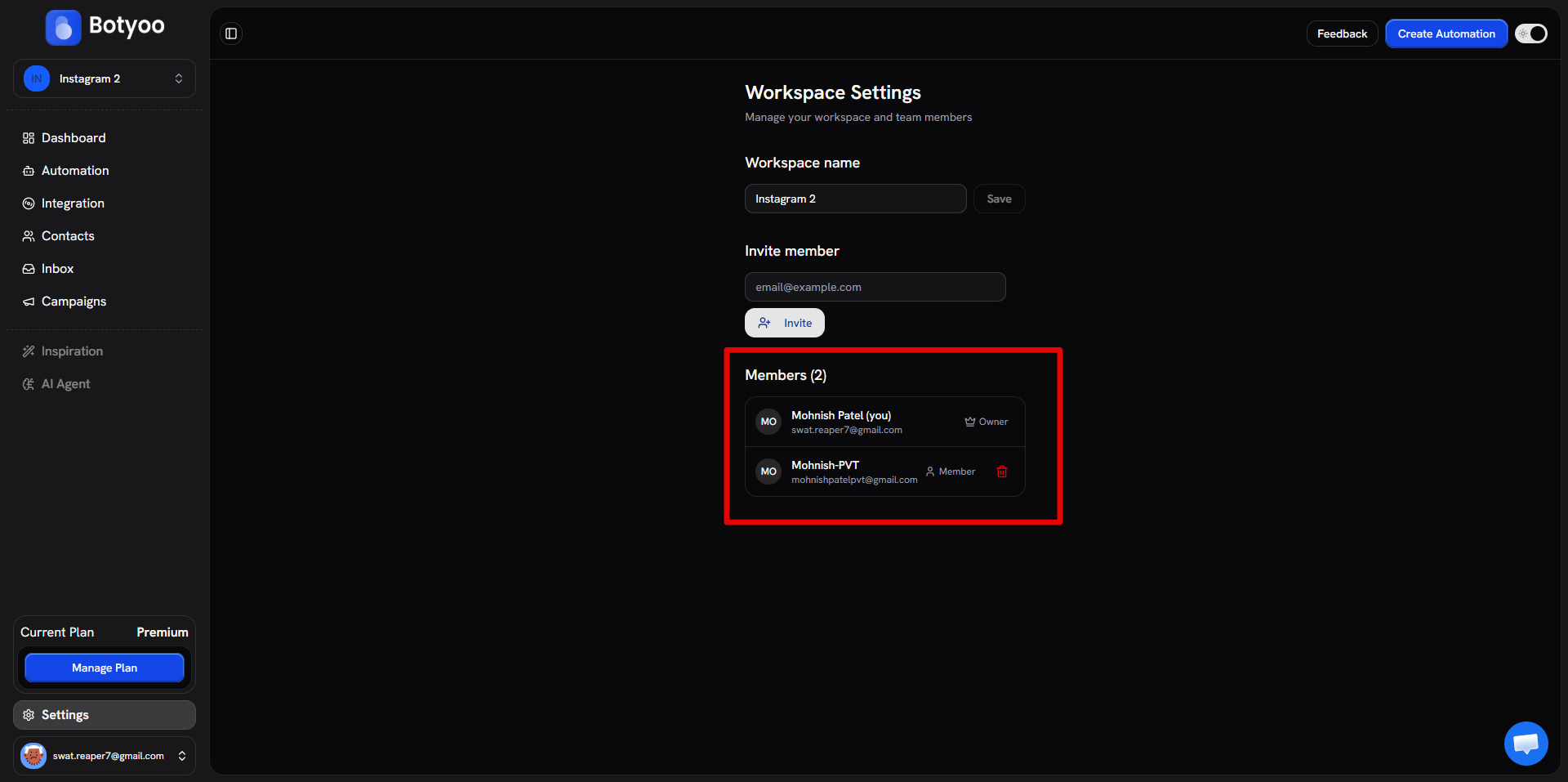
Step 4: They show up in Members
They appear immediately in the Members list with the Member role.
Roles
| Role | Can do |
|---|---|
| Owner | Everything including billing, IG connection, removing members |
| Member | Everything except billing, IG connection changes, removing members |
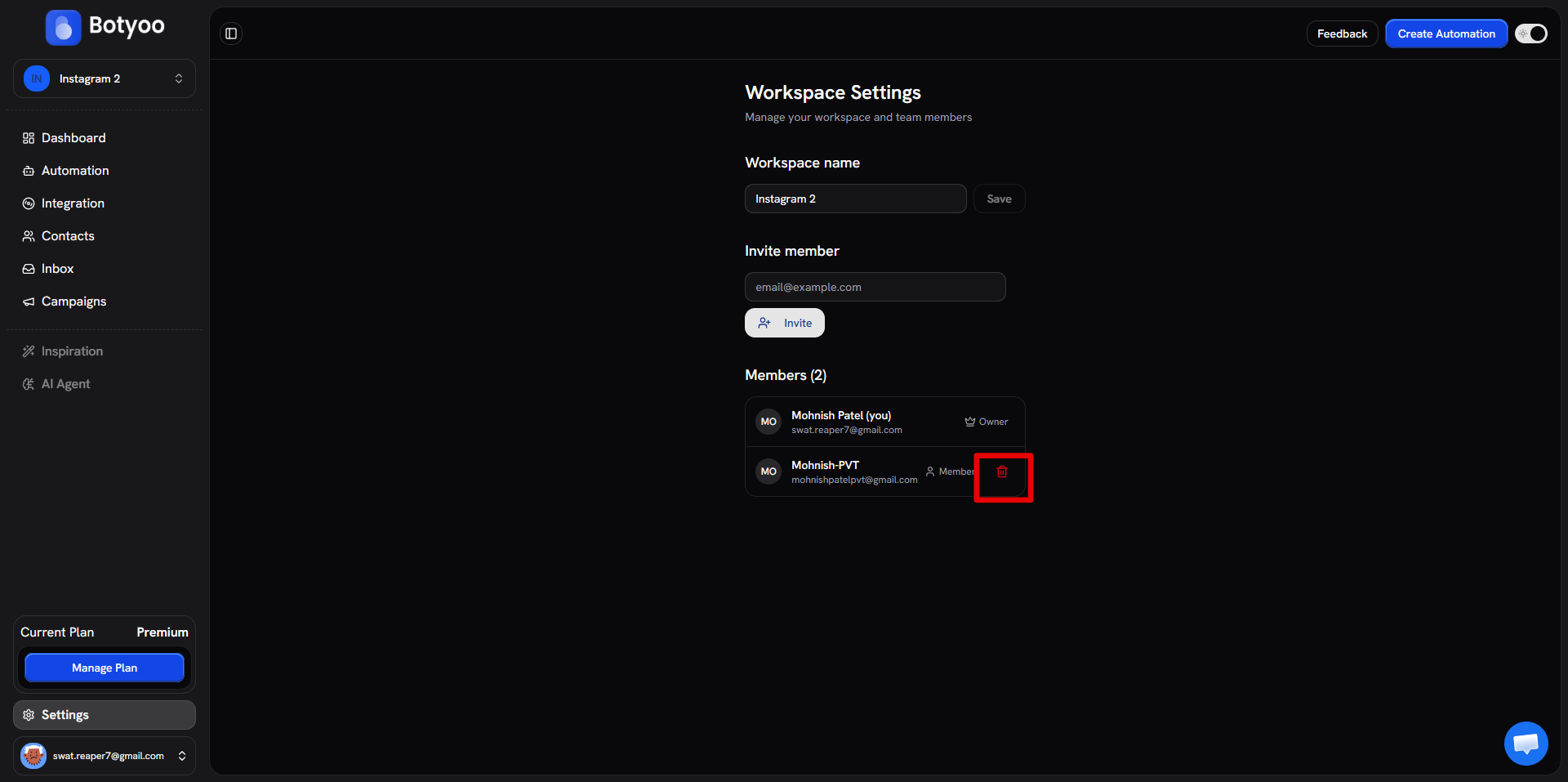
Removing a member
Only the Owner can. From the Members list, click the row’s remove action and confirm. Access is revoked immediately.
What’s next
Was this article helpful?