How to add buttons to a message
Send a DM with tappable URL buttons that link to your offers, calendars, or product pages.
On this page
How to add buttons to a message
Buttons turn a plain DM into a tappable CTA. Each button has a label and a URL.
Botyoo buttons are URL buttons, they link to a destination. They don’t branch the flow based on which one the user taps.
Step 1: Open the Flow Builder
Open or create a flow.
Step 2: Add a Send Message with Buttons step
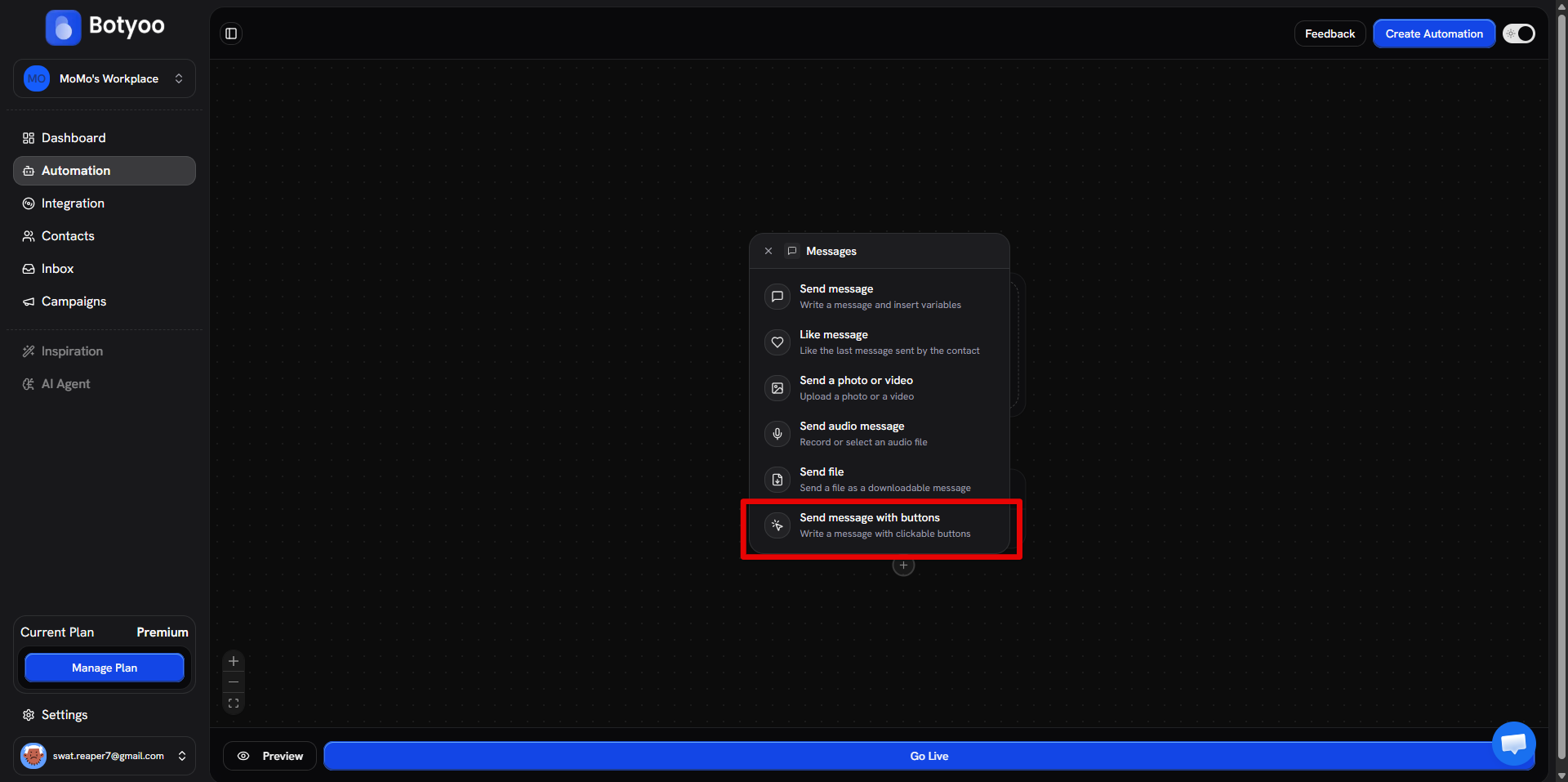
Click + between two steps. In the picker, choose Messages → Send message with buttons.
Step 3: Write the message body
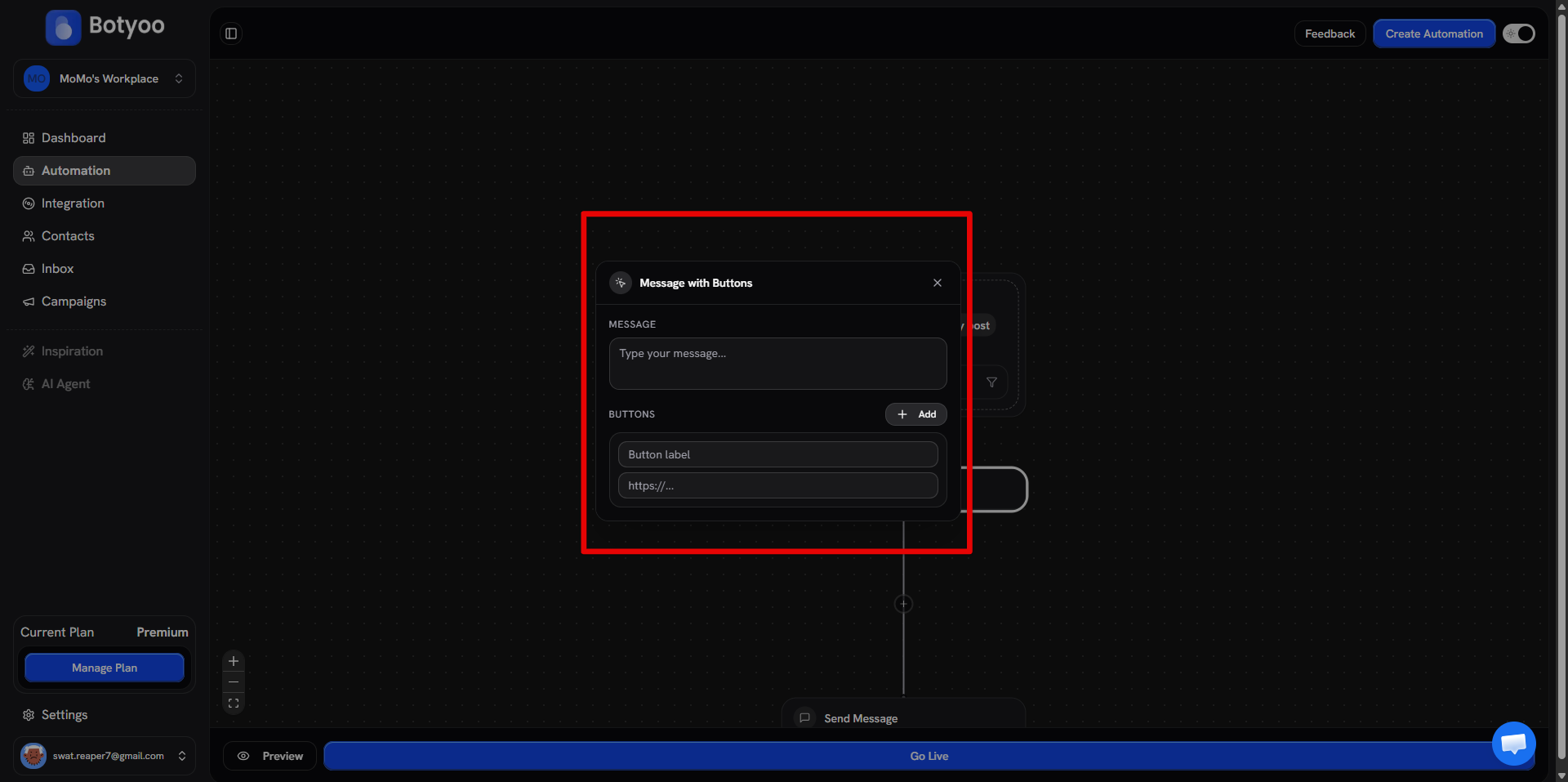
Compose the text that appears above the buttons.
Step 4: Add buttons
Click Add Button. Each button gets a label and a URL.
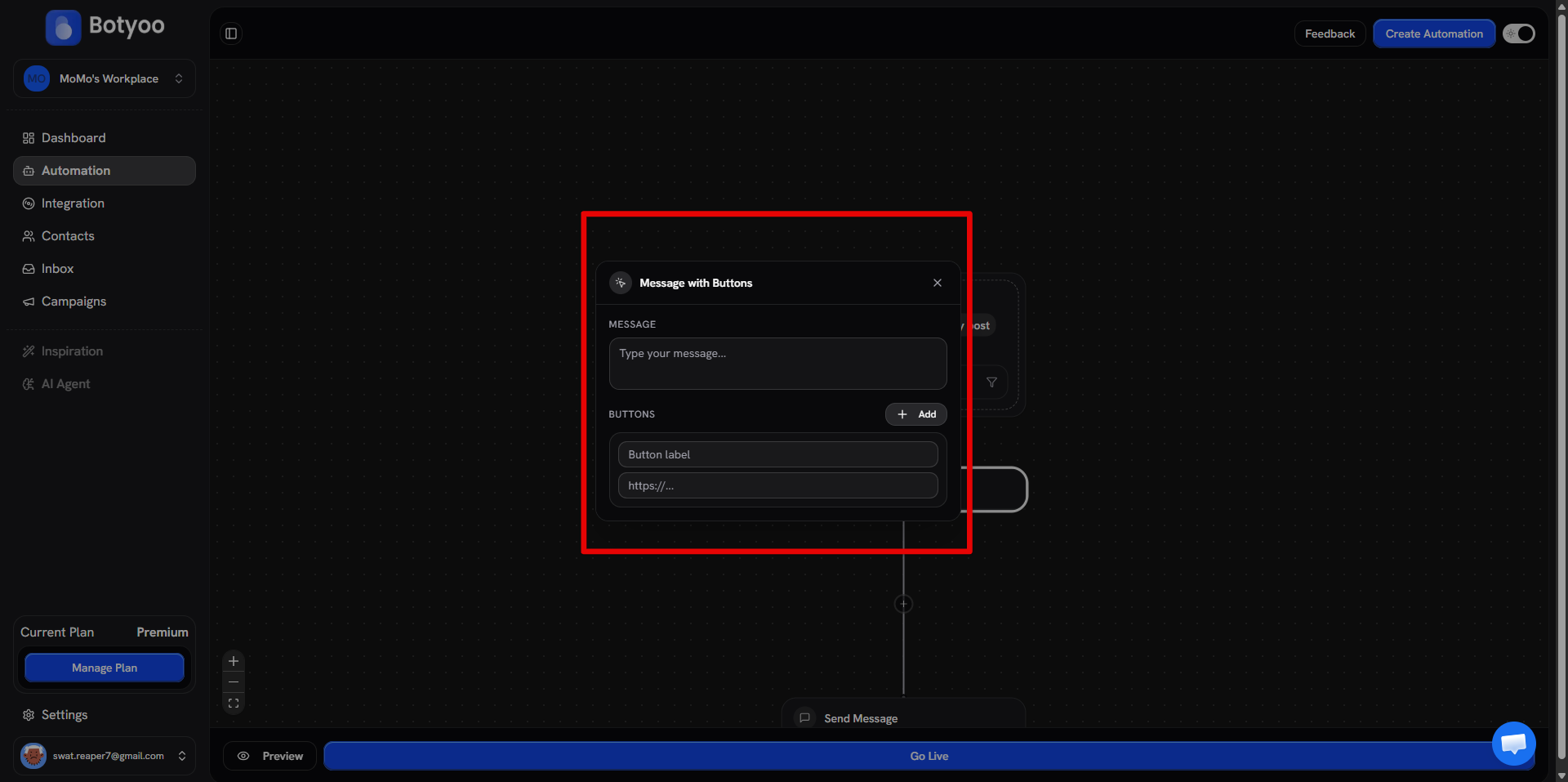
Examples:
- Label:
Shop the drop· URL:yourstore.com/summer - Label:
Book a call· URL:calendly.com/you/15min - Label:
Read the guide· URL:you.com/guide
Step 5: Add more buttons
Stack as many as you need. Most flows ship 1–3 buttons.
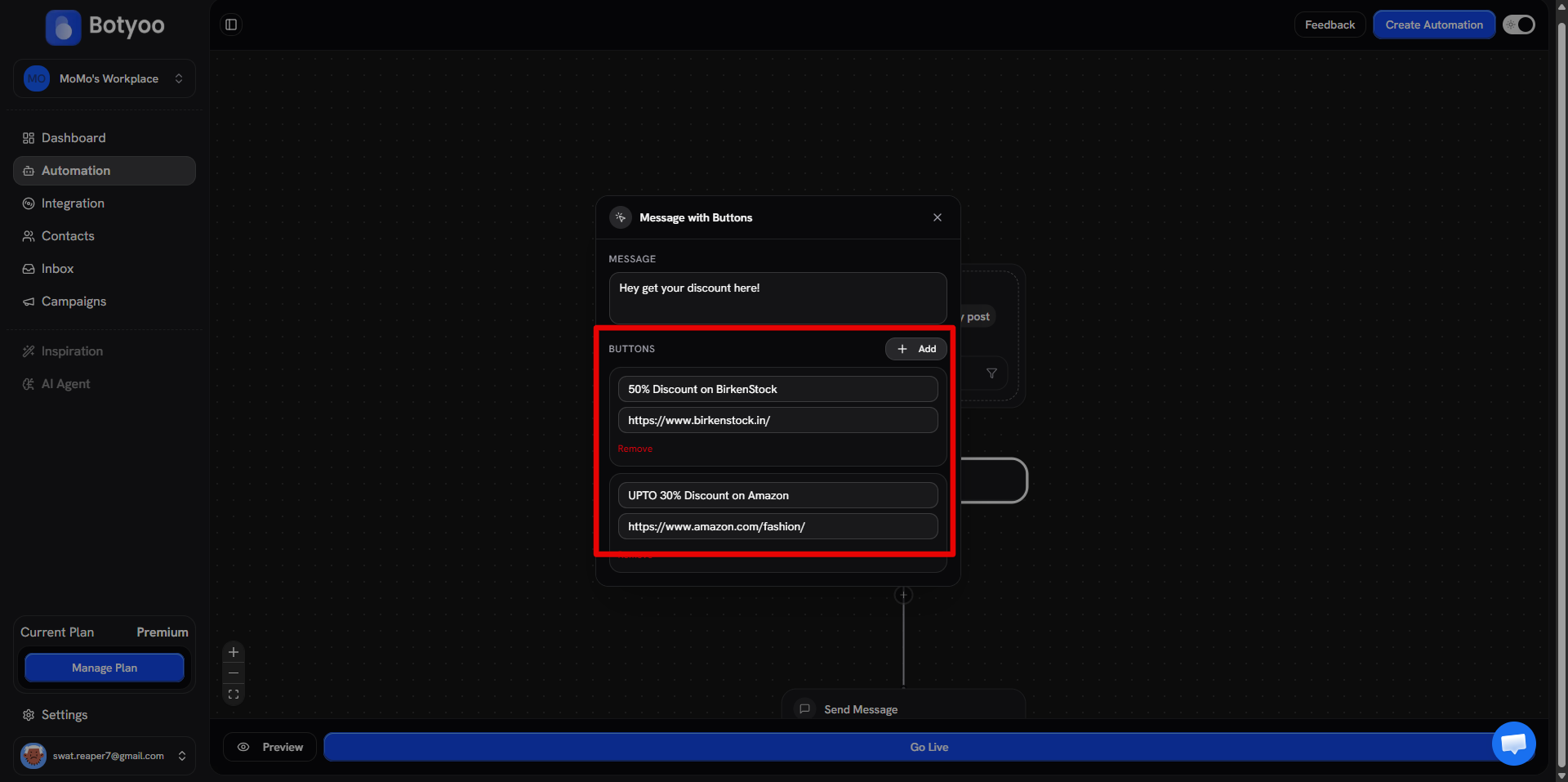
Step 6: Save the flow
The DM arrives with the buttons rendered natively in Instagram, they appear as tappable pills beneath the message text and open the linked URL in the in-app browser when tapped.
Why URL buttons, not branch buttons
Branching by button tap (different replies based on which button the user pressed) is in the upcoming Scenario condition step. For now, route users via different URLs and track them with link-level analytics in your destination tool.
What’s next
Was this article helpful?