
Help Center How-To Guides
How to add Email Gate
Capture an email inside the DM before sending your link or offer.
On this page
How to add Email Gate
Email Gate asks for an email in the DM. The user replies, Botyoo saves it, and then sends the link.
Step 1: Open the automation
Open the Instant Automation you want to add Email Gate to.
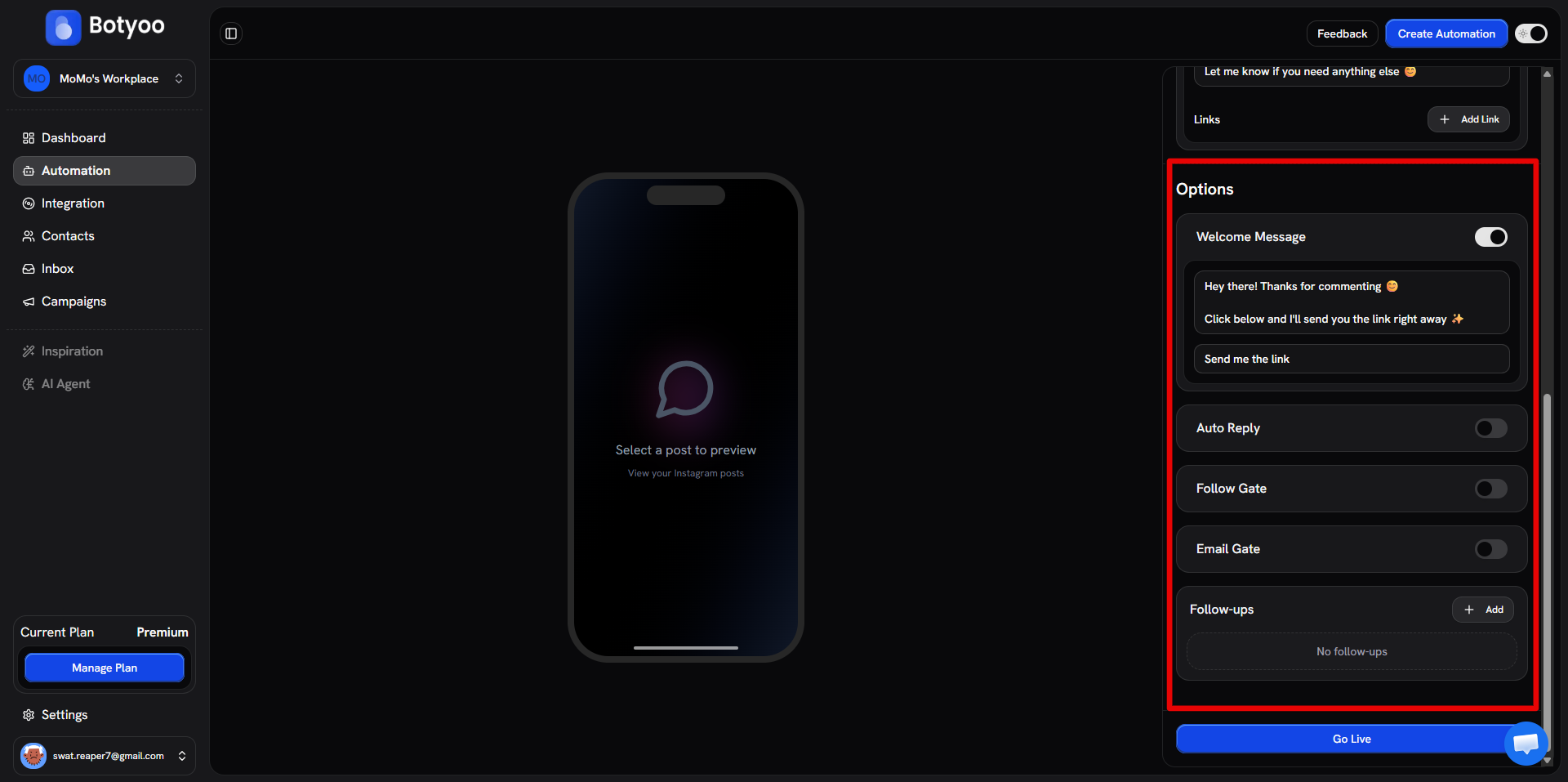
Step 2: Find Options
Scroll to the Options section.
Step 3: Toggle Email Gate
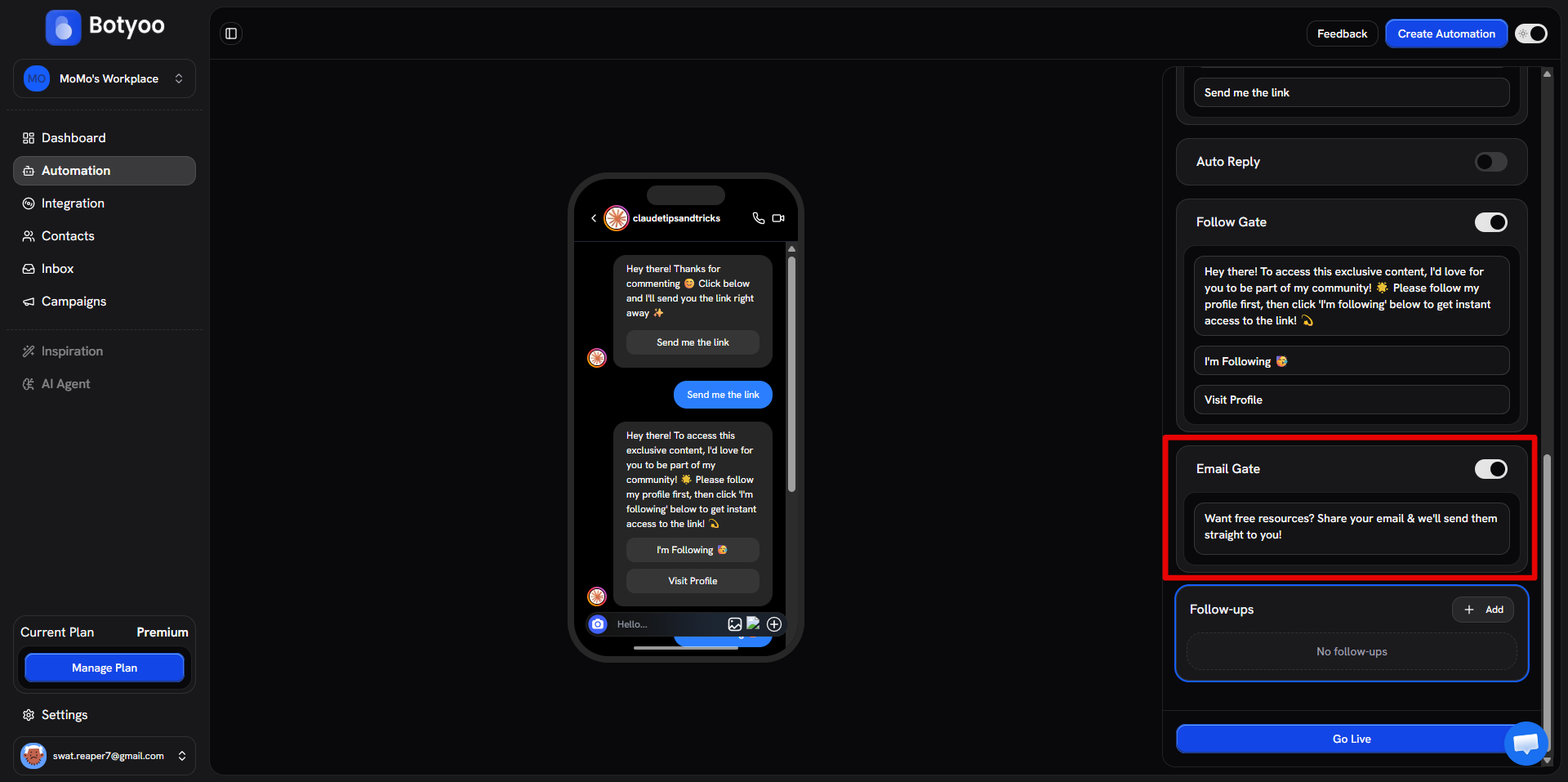
Turn Email Gate on.
Step 4: Customize the ask message
Edit the “what’s your email?” prompt. Defaults work, but make it sound like you.
Step 5: Save and activate
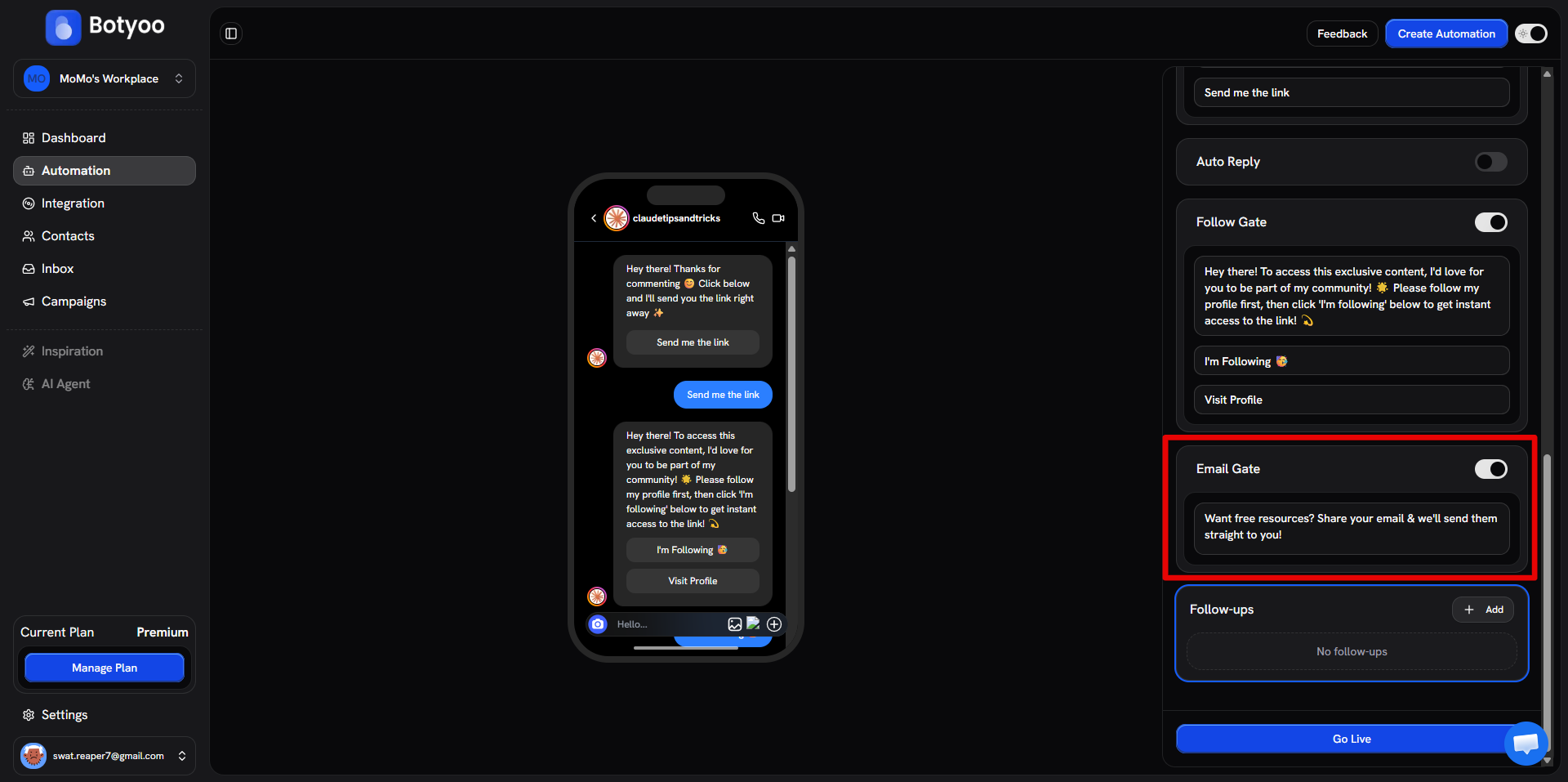
The gate now runs before the DM is delivered.
Where captured emails appear
Every email captured by Email Gate appears in the Contacts page, linked to that contact.
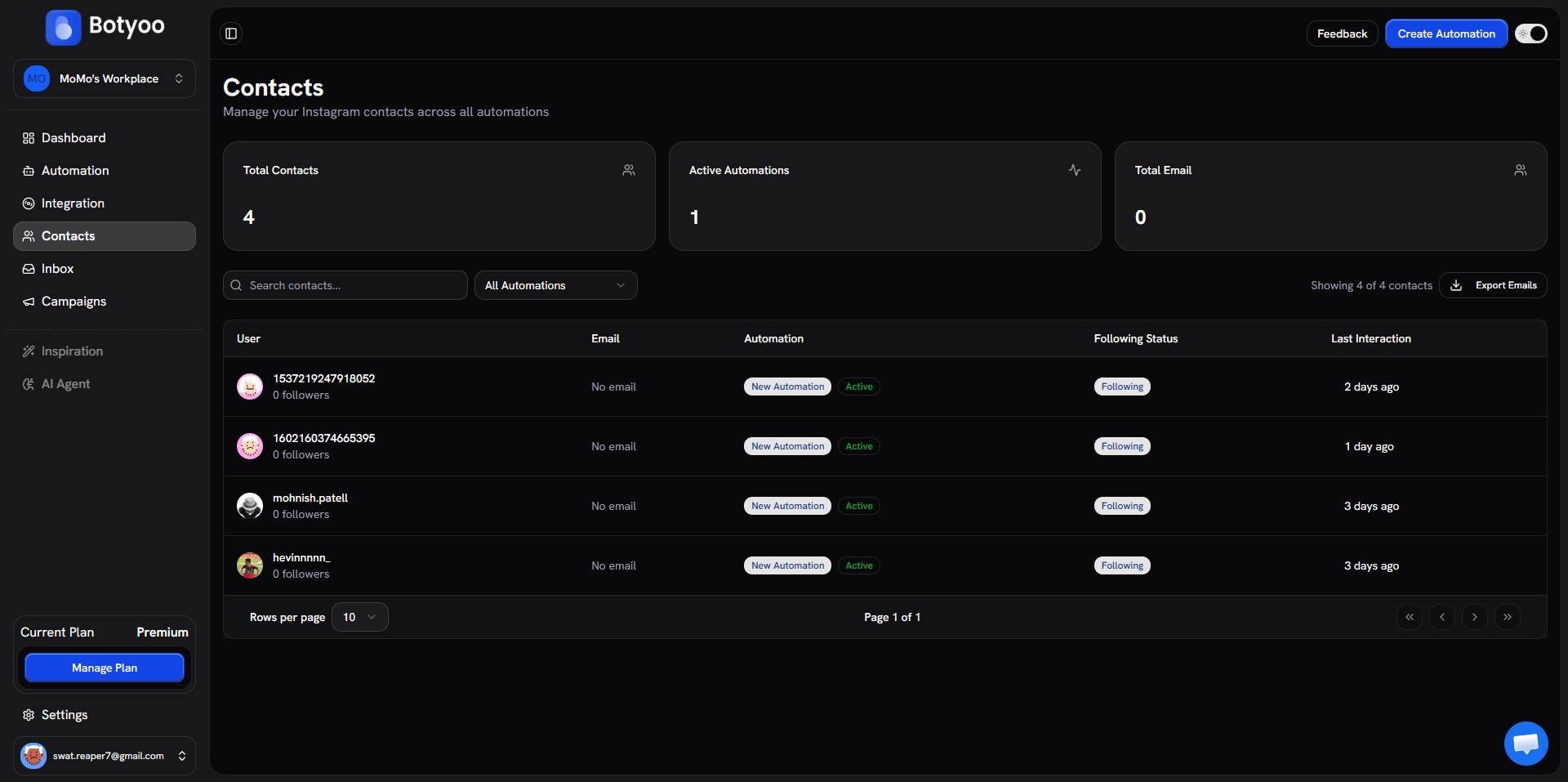
You can:
- Filter by automation source
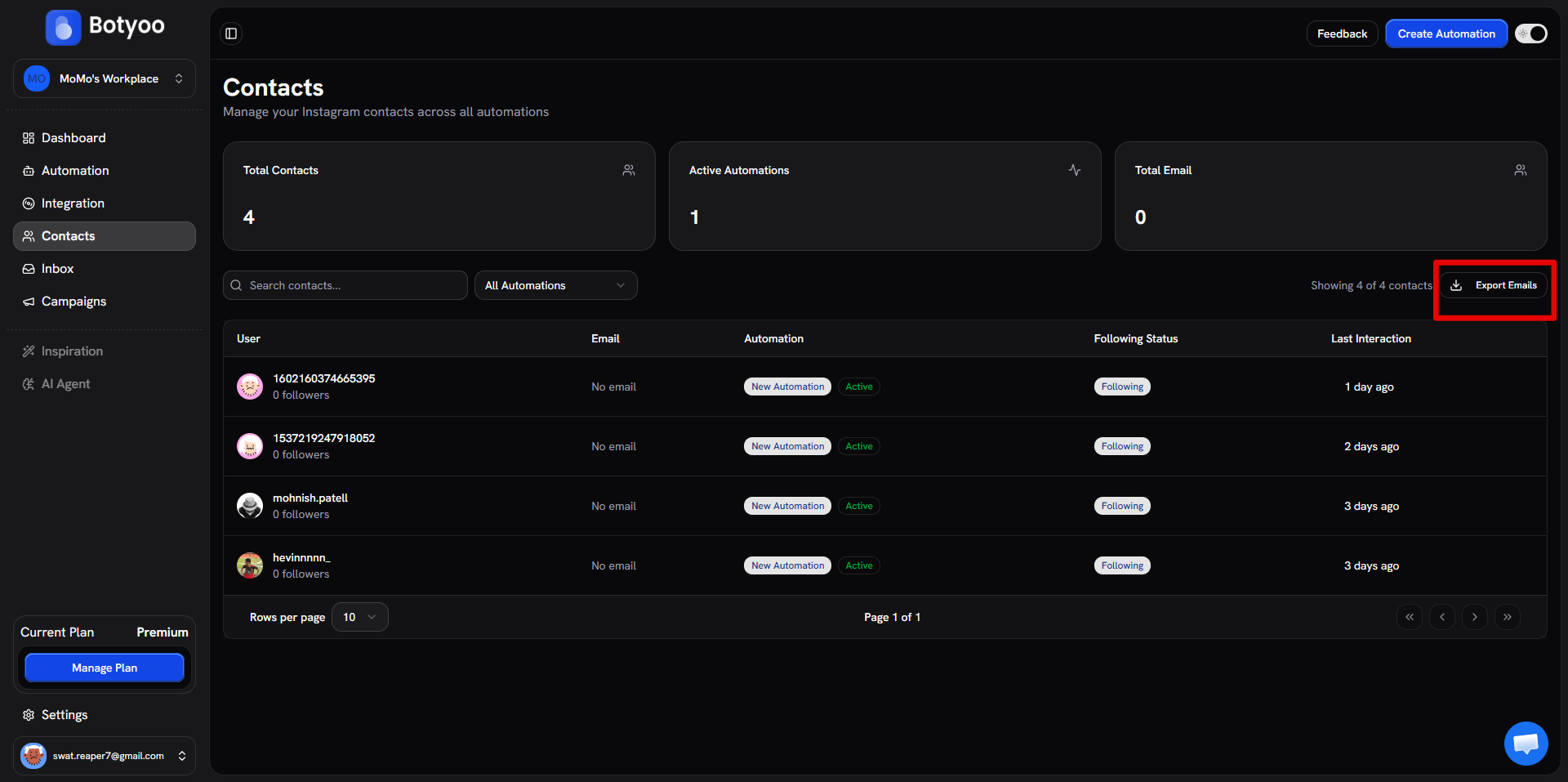
- Export to CSV from the Contacts page
- Push them into a campaign audience
What’s next
Was this article helpful?