

How to export contacts
Download your captured emails and contact list as a CSV.
On this page
How to export contacts
Botyoo exports captured contacts as a CSV, useful for importing into your email tool, CRM, or any analytics dashboard.
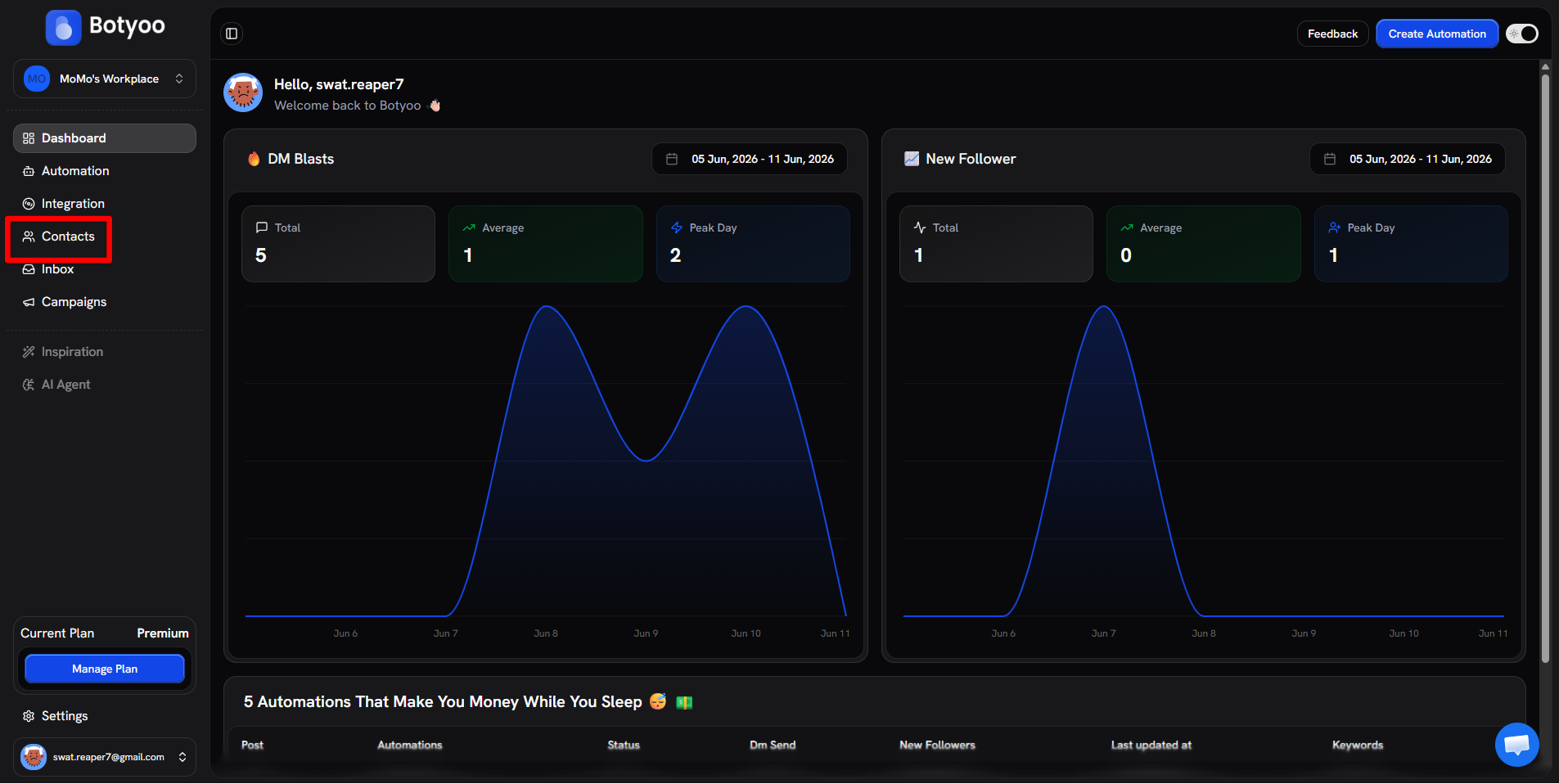
Step 1: Open the Contacts page
Click Contacts in the sidebar.
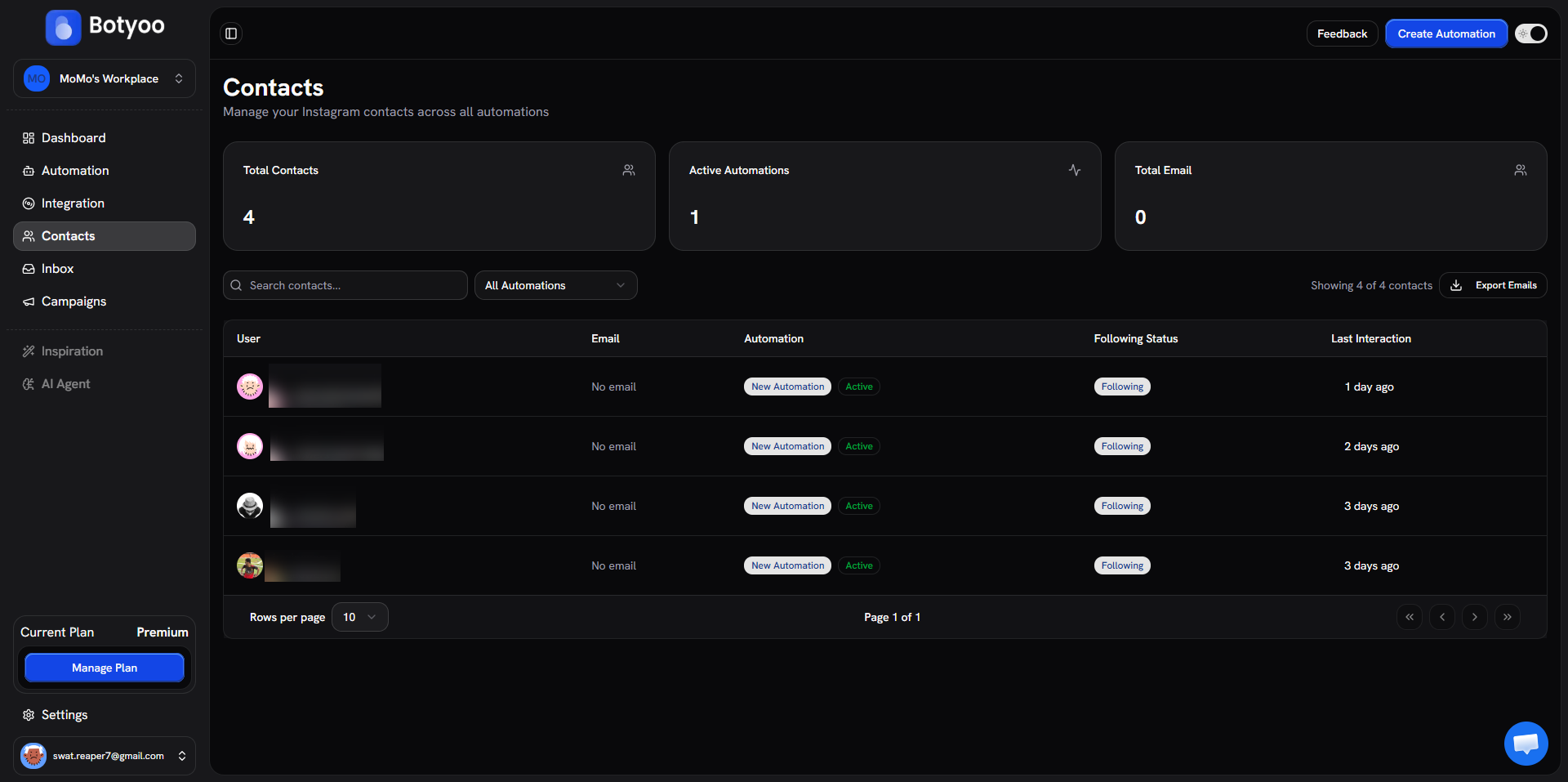
Step 2: Filter (optional)
Use the All Automations filter to export only the contacts captured by one automation. Use the search bar to narrow further.
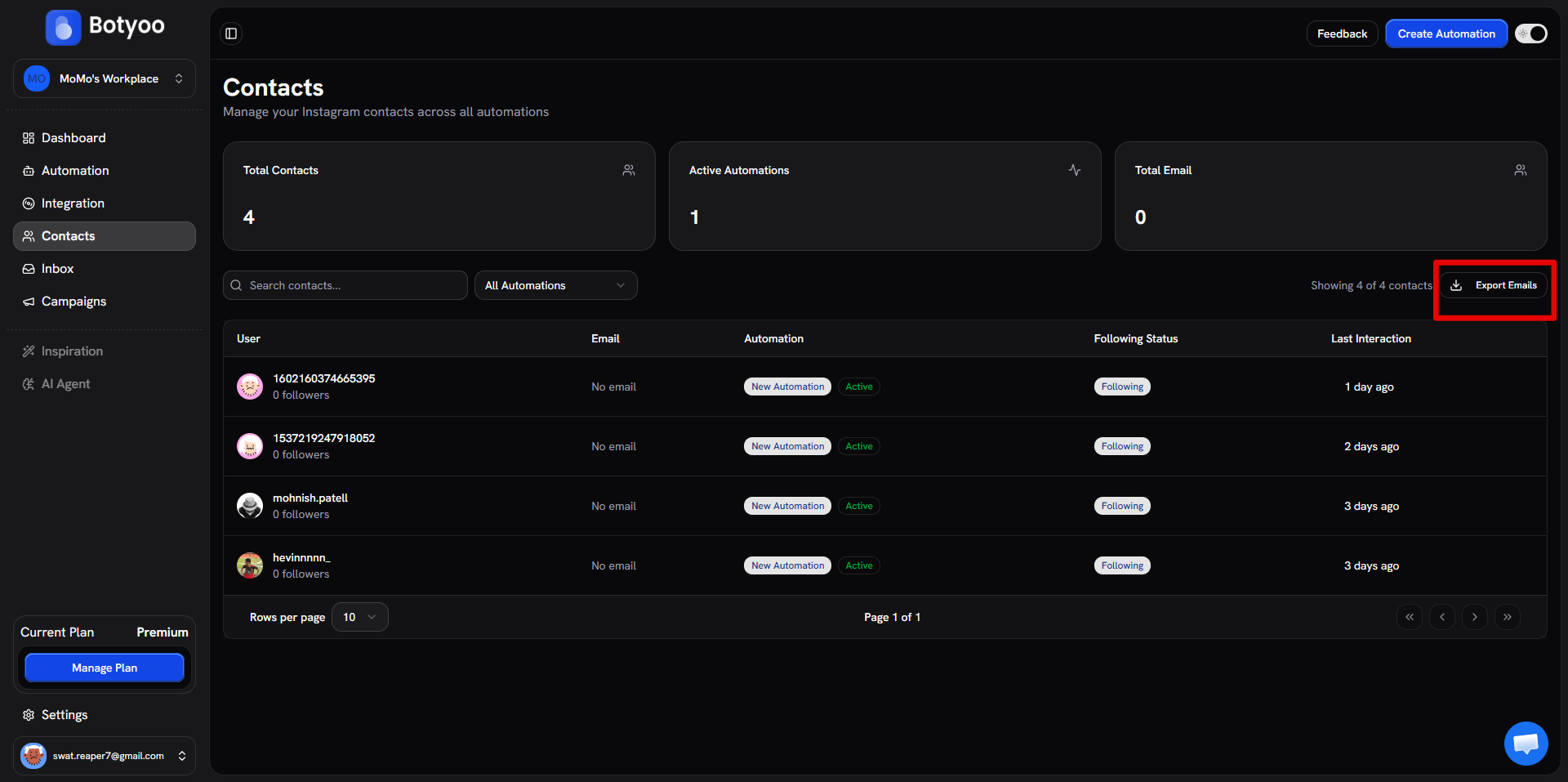
Step 3: Click Export Emails
Top-right of the Contacts table.
No emails yet? If none of your contacts have a captured email, Botyoo shows a “No contacts to export” notice instead of downloading a file. Turn on Email Gate in one of your automations first, once contacts hand over an email, they’ll show up here ready to export. See How to add Email Gate.
Step 4: Download the CSV
When at least one contact has an email, Botyoo generates a CSV and downloads it to your computer immediately.
The CSV includes:
- Username (or IGSID if username unavailable)
- Captured email
- Source automation
- Follower count
- First seen date
- Tags
- Folders
Step 5: Import elsewhere
Upload the CSV to your destination, Mailchimp, ConvertKit, Klaviyo, a Google Sheet, your CRM. Match the columns to the destination’s fields.
Privacy
Only export and store emails you have permission to message. Most email tools require recipients to have opted in, Botyoo’s Email Gate counts as opt-in for transactional follow-up but check your email provider’s rules for bulk marketing.
What’s next
Was this article helpful?