

How to tag and note contacts
Add inline tags and private team notes to any contact from the Inbox side-panel.
On this page
How to tag and note contacts
Tags and notes are the lightweight way to track context on individual contacts, without building a folder for every category.
Step 1: Open the contact
Click any conversation in the Inbox.
Step 2: Find the contact side-panel
The right side of the open conversation shows the contact’s profile. Scroll to Tags and Notes.
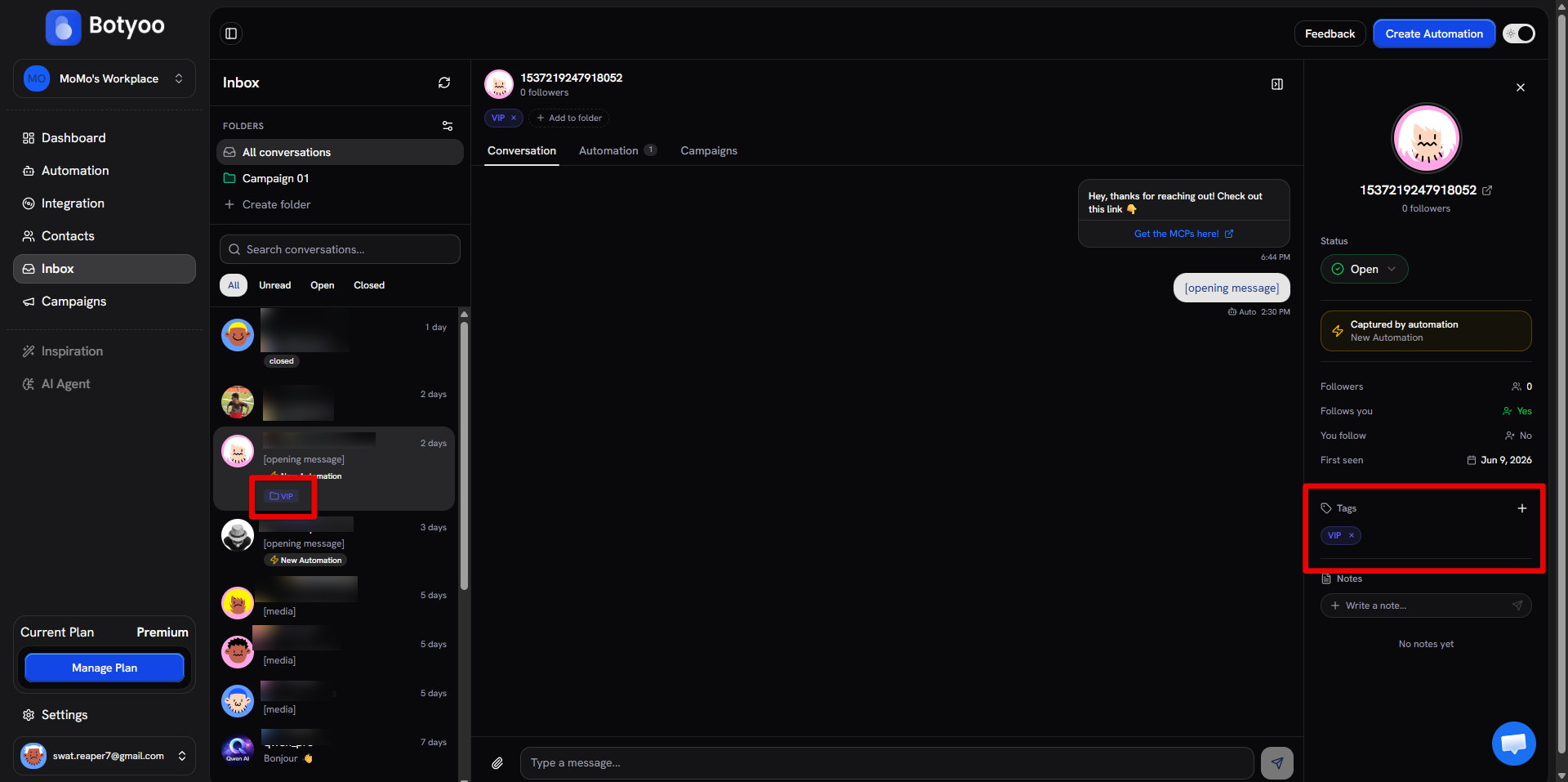
Adding a tag
Click the + next to Tags. Type a tag name and press Enter. Existing tags appear in a dropdown for quick reuse.
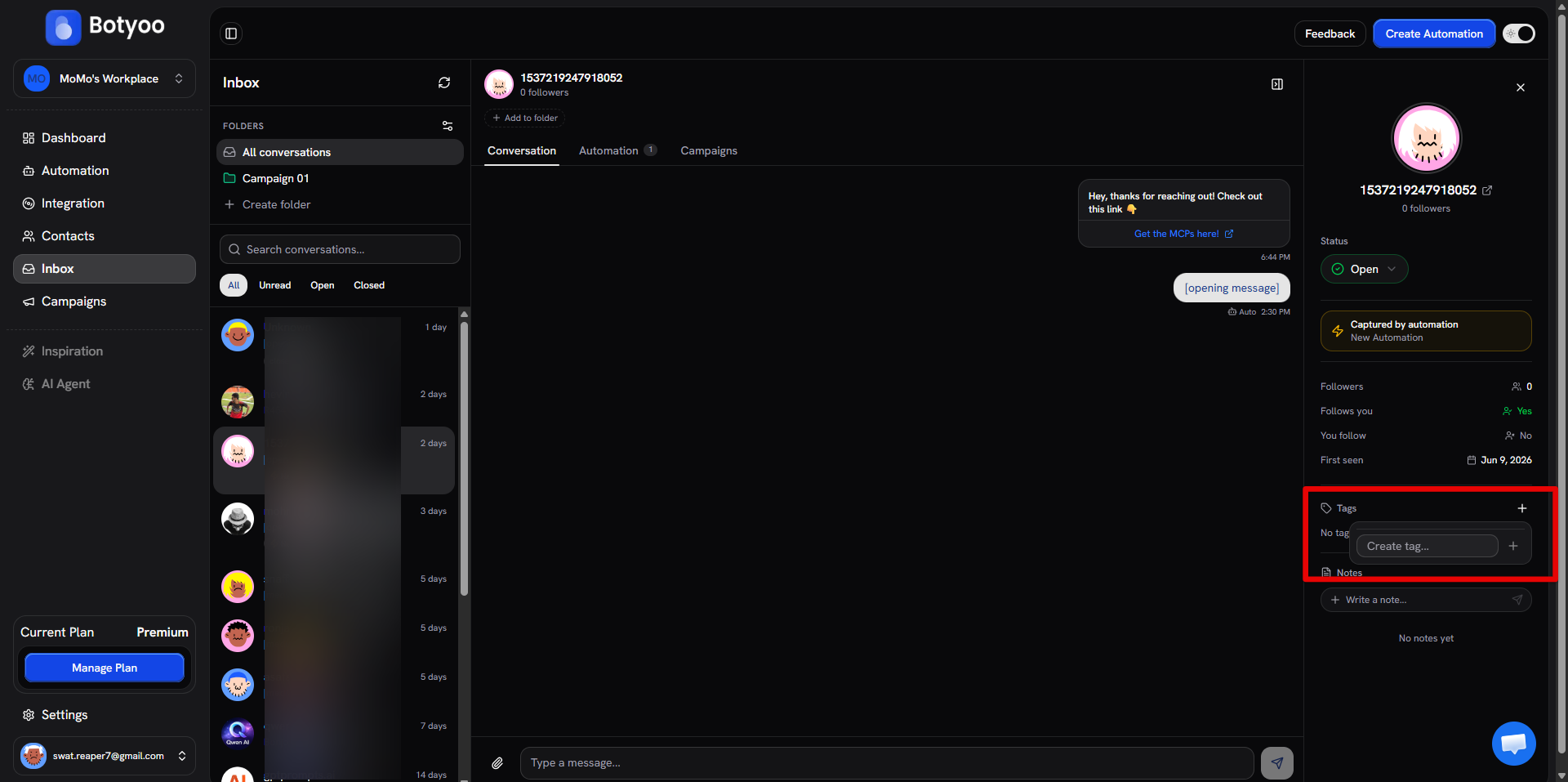
Example tags:
interested-in-coursesasked-about-pricingpaid-customerreplied-to-flash-sale
Adding a note
Click into the Write a note… field. Type. Notes are private to your workspace, the contact never sees them.
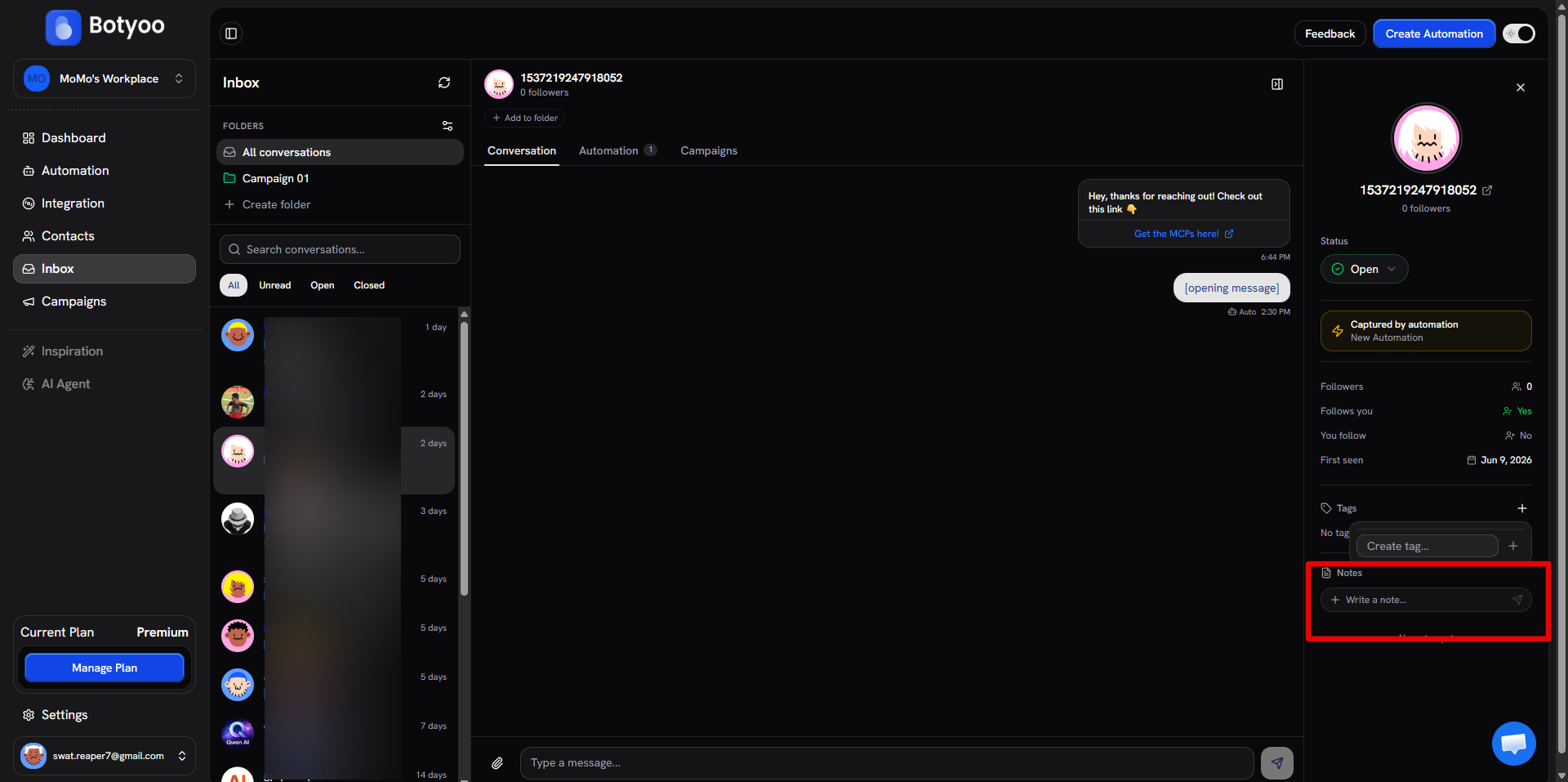
Example notes:
- “Asked about bulk discount, said budget is $500”
- “Buys every quarter, invite to early access”
- “Don’t follow up, opted out by DM”
Using tags in campaigns
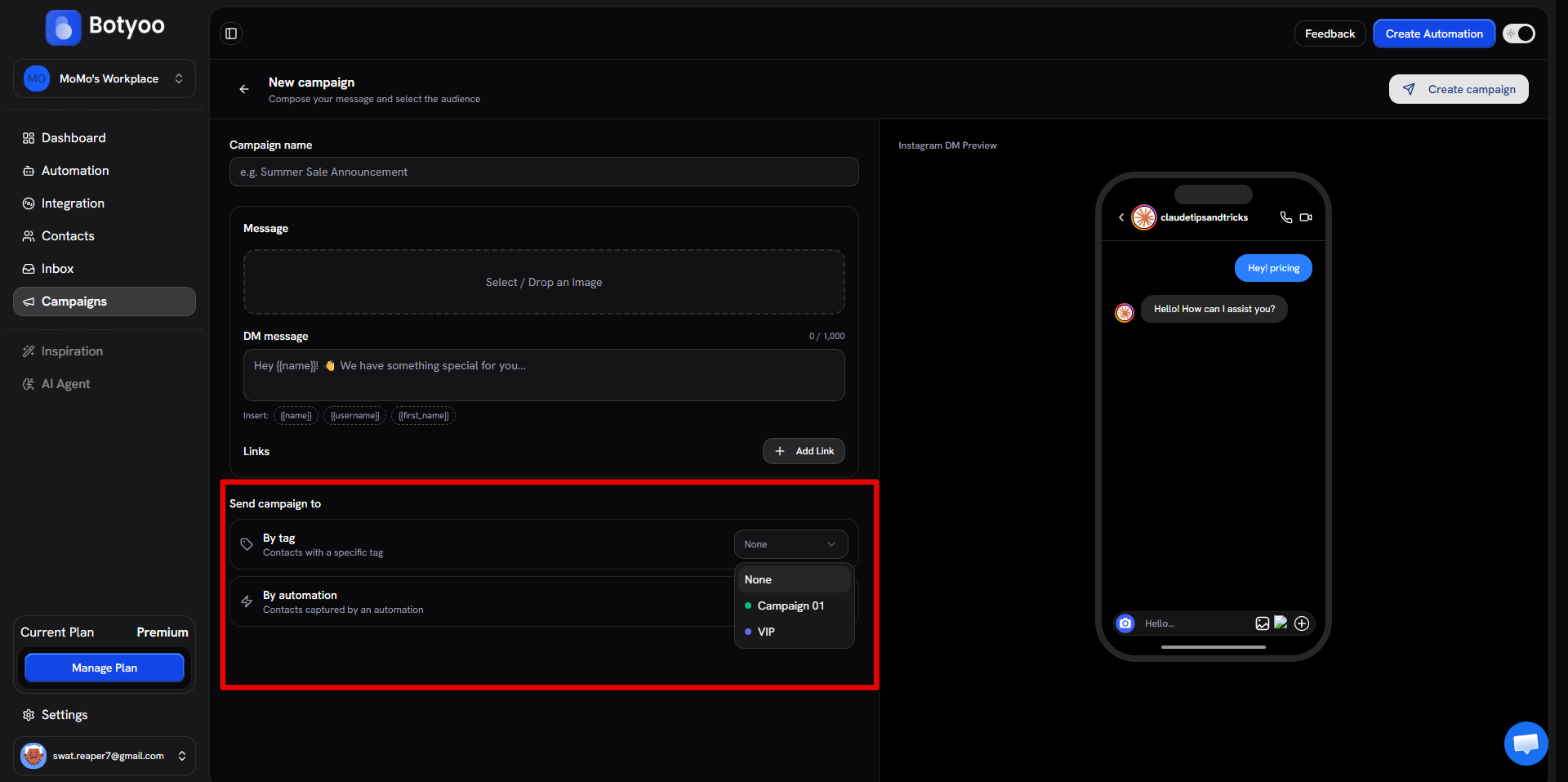
Tags feed into campaign audience targeting. Create a campaign, pick By tag, and select your tag. Every contact with that tag becomes part of the audience.
Tags vs folders
- Tags, inline labels for a single contact based on a conversation
- Folders, reusable buckets you sort many contacts into at scale
Use tags for one-off context, folders for systematic segmentation.
What’s next
Was this article helpful?