

How to create a workspace
Spin up a separate workspace per Instagram account or brand.
On this page
How to create a workspace
Each Botyoo workspace holds one Instagram connection. Create extra workspaces when you manage multiple accounts or brands.
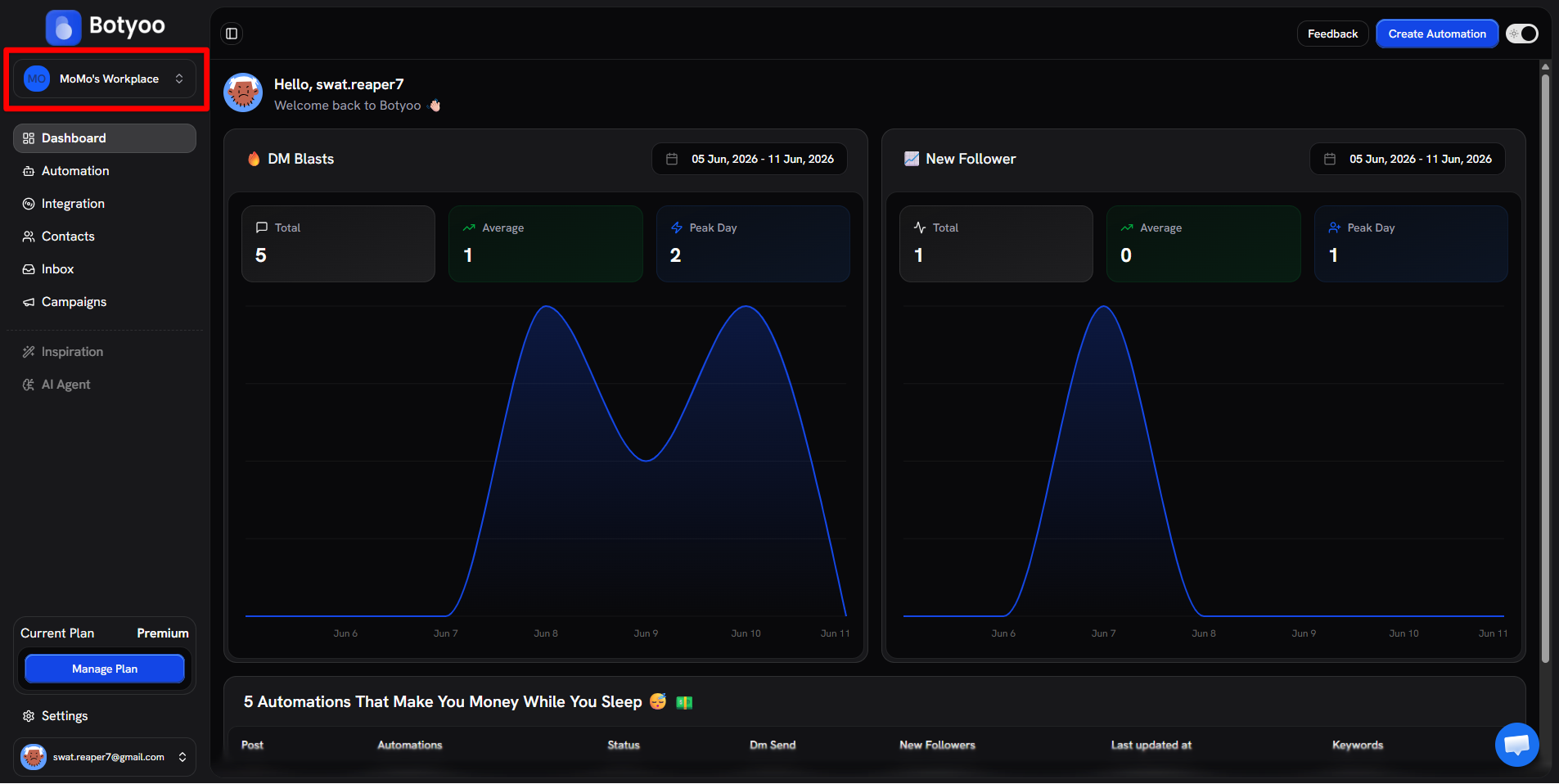
Step 1: Open the workspace switcher
Click the workspace pill at the top of the sidebar.
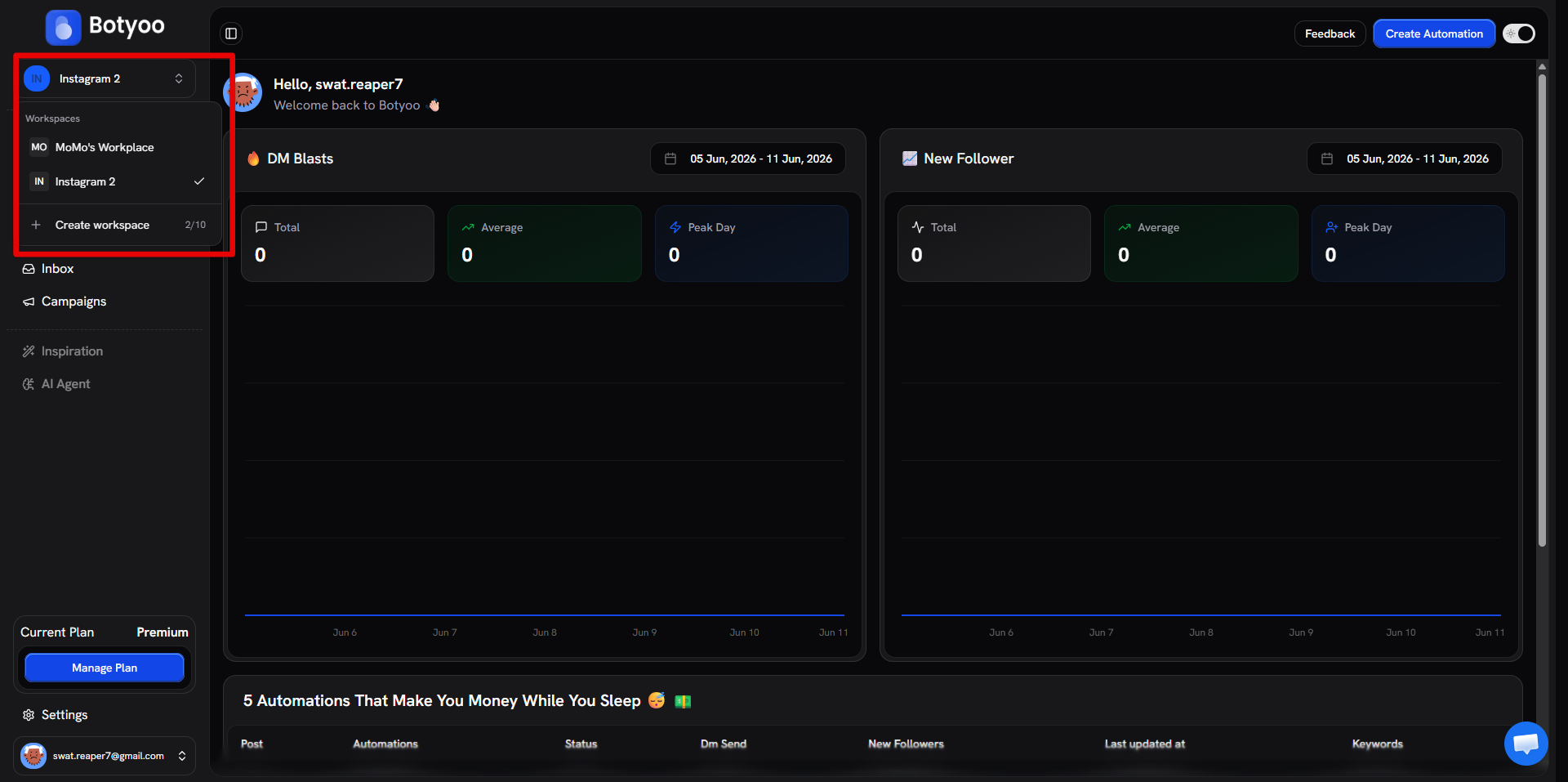
Step 2: Click “Create workspace”
The dropdown shows your existing workspaces and a + Create workspace action. A counter (e.g. 1/10) shows how many workspace slots you have left on your plan.
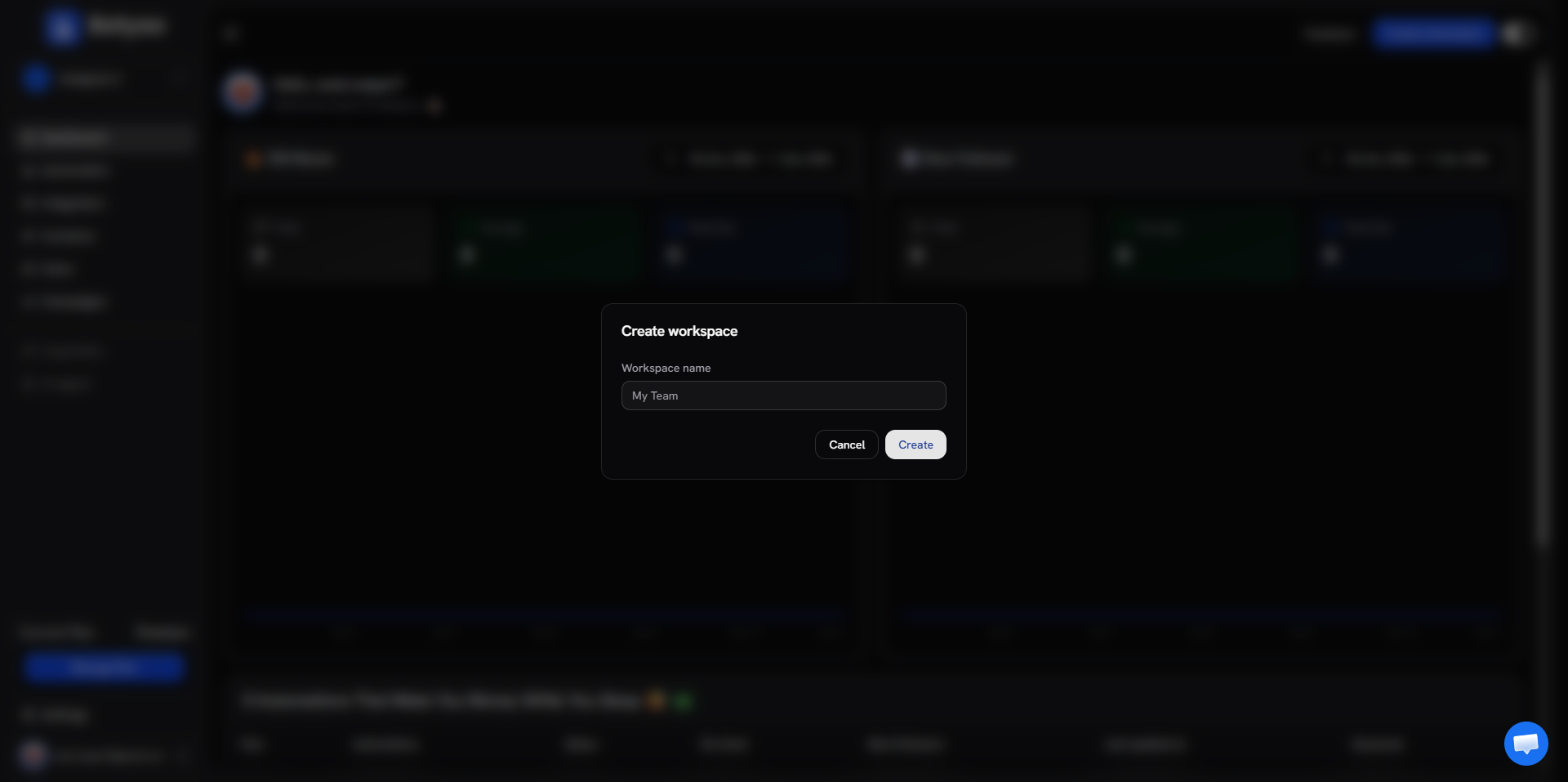
Step 3: Name the workspace
Enter a clear name like “Client A, Studio” or “My Personal IG”. You’ll see this everywhere in the UI.
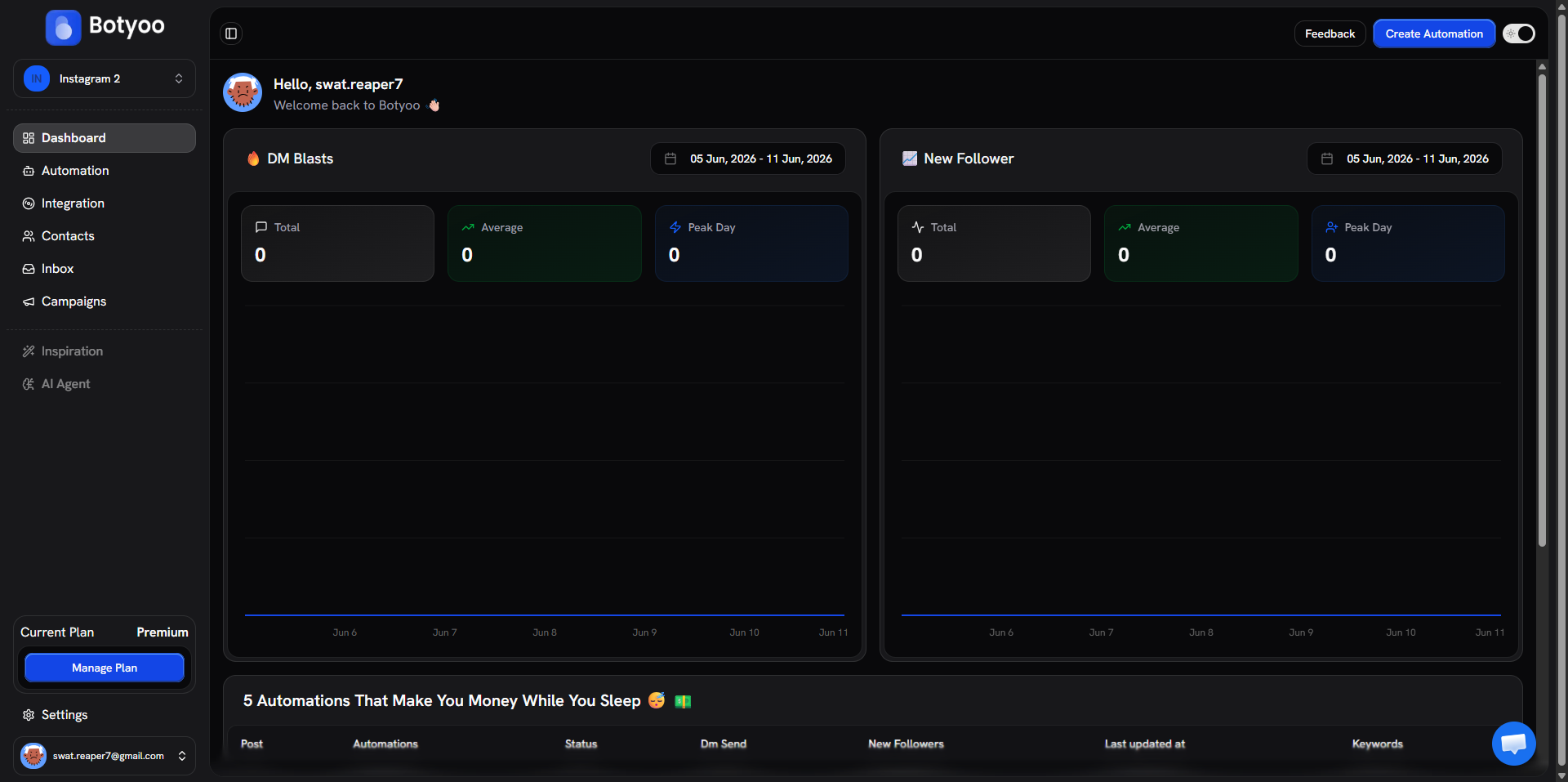
Step 4: Click Create
Botyoo creates the workspace and switches you into it. It starts empty, no automations, no contacts, no inbox history.
Step 5: Connect Instagram in the new workspace
Each workspace needs its own Instagram. Go to Integration in the sidebar, the page shows Not Connected with a Connect Instagram button, the same as the very first time you connected Botyoo. Click it and walk through Meta’s authorization.
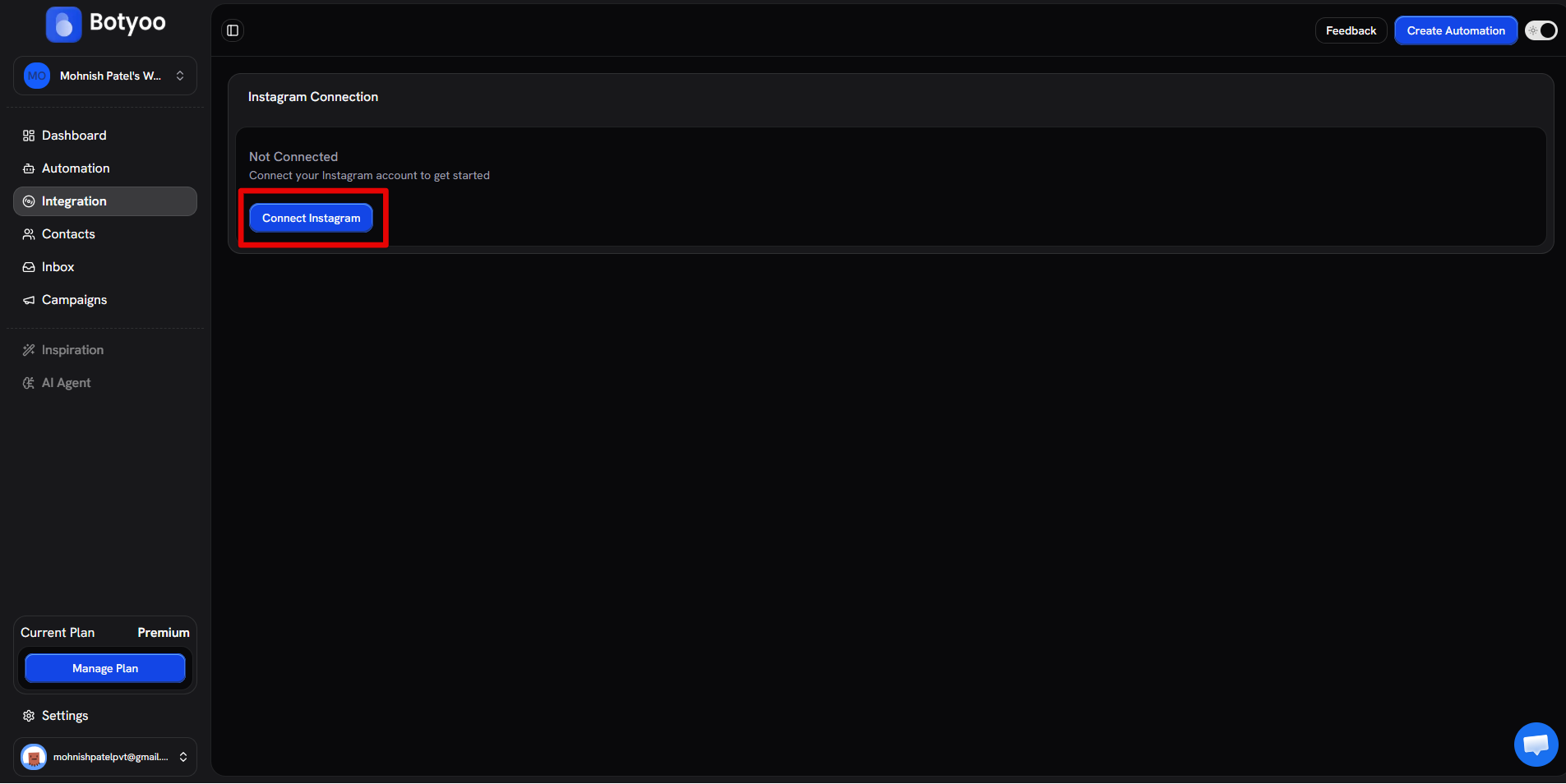
See How to connect Instagram for the full Meta auth walkthrough.
Plan limits
- Pro: 1 workspace
- Premium: 10 workspaces
- Enterprise: unlimited
What’s next
Was this article helpful?