

How to manage billing and your plan
Upgrade, downgrade, change billing cycle, and view invoices from Settings.
On this page
How to manage billing and your plan
Everything billing-related lives in Settings → Plan & Billing.
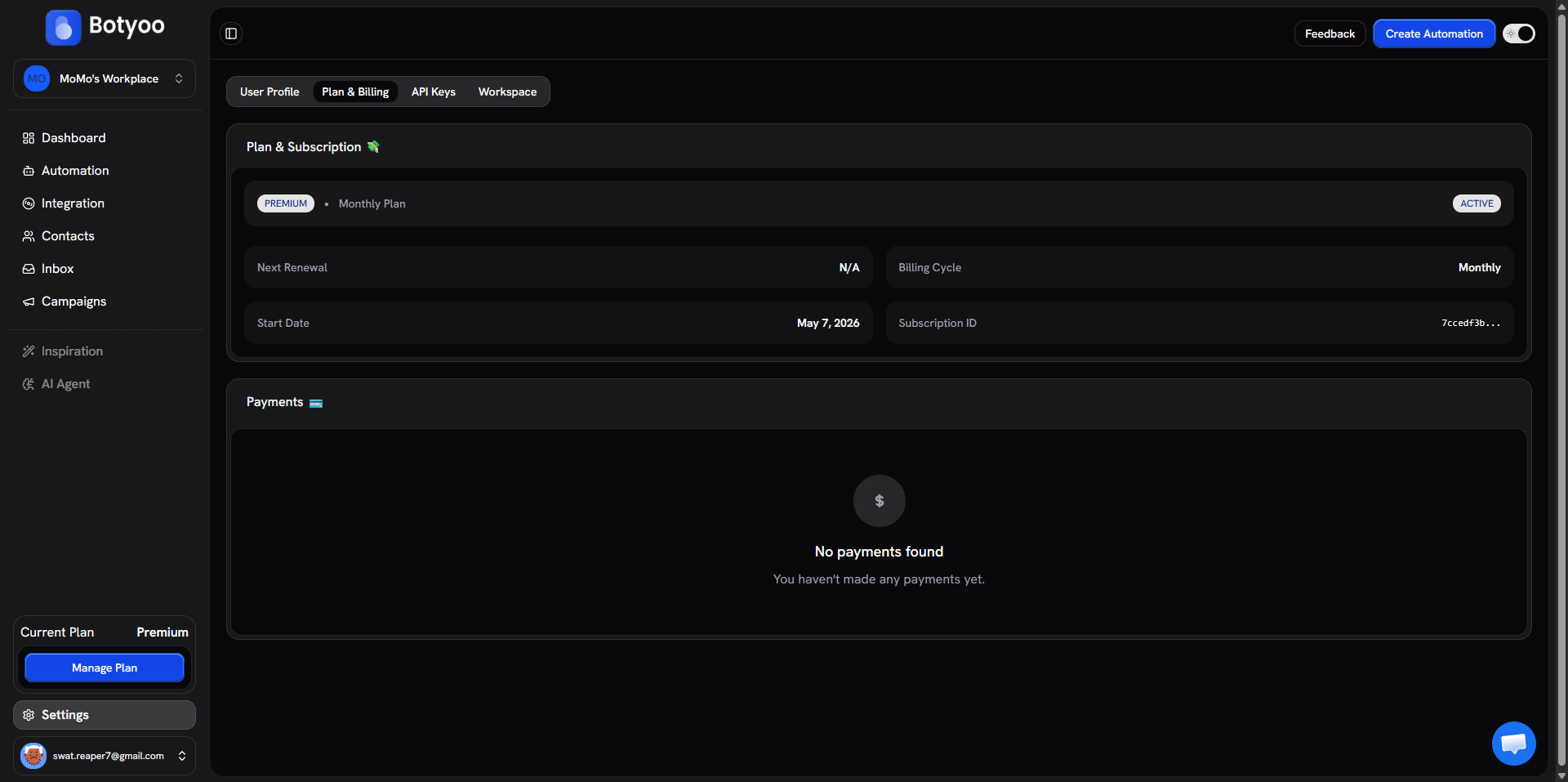
Step 1: Open Plan & Billing
Click Settings at the bottom of the sidebar, then the Plan & Billing tab.
Step 2: Review your current plan
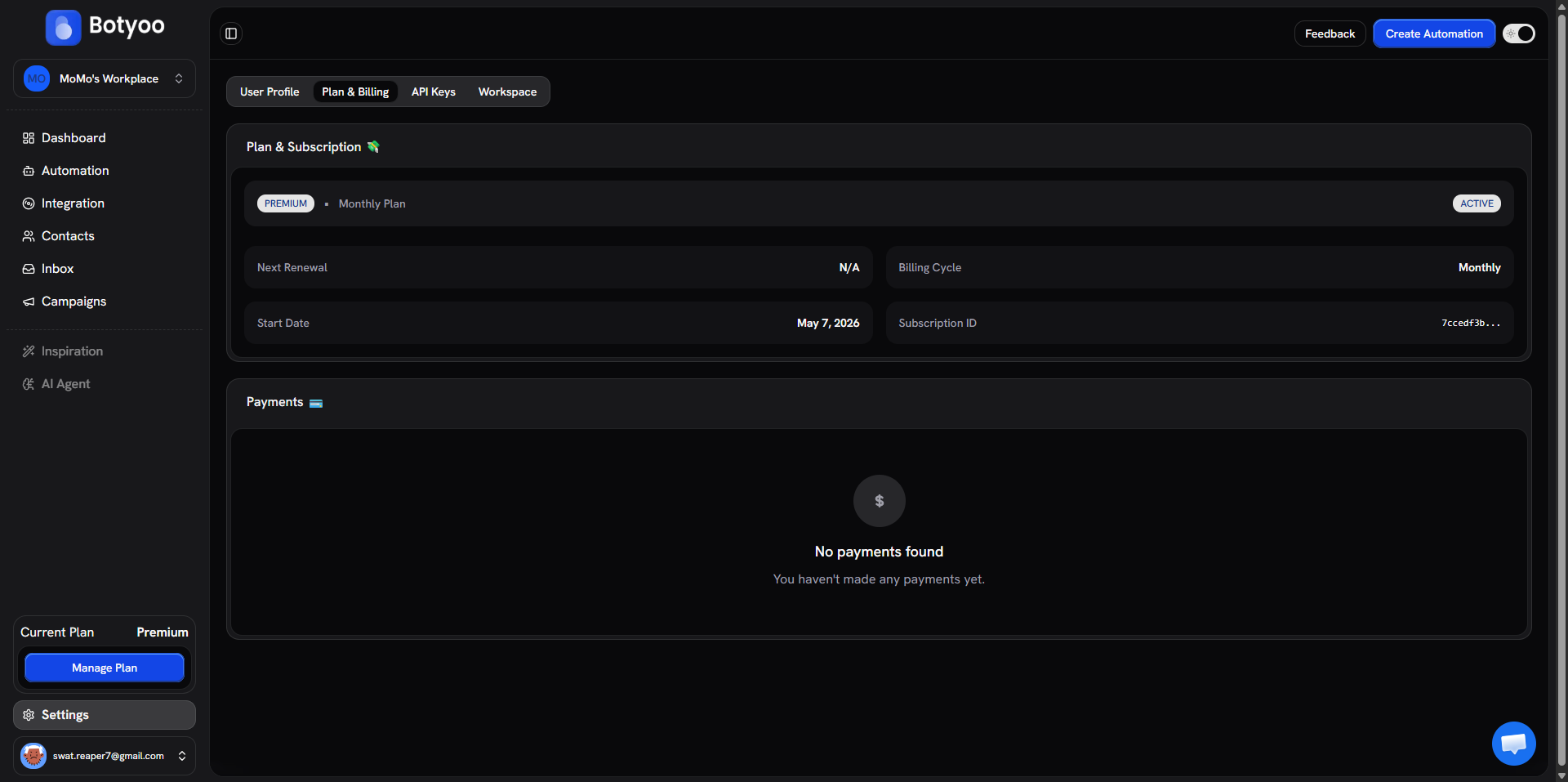
The top card shows:
- Plan name (Pro / Premium / Enterprise)
- Status (Active / Cancelling / Past due)
- Next renewal date
- Billing cycle (Monthly / Quarterly / Yearly)
- Subscription ID
Step 3: Upgrade or downgrade
Click Upgrade (or Change plan). Pick the new plan and billing cycle. Complete checkout.
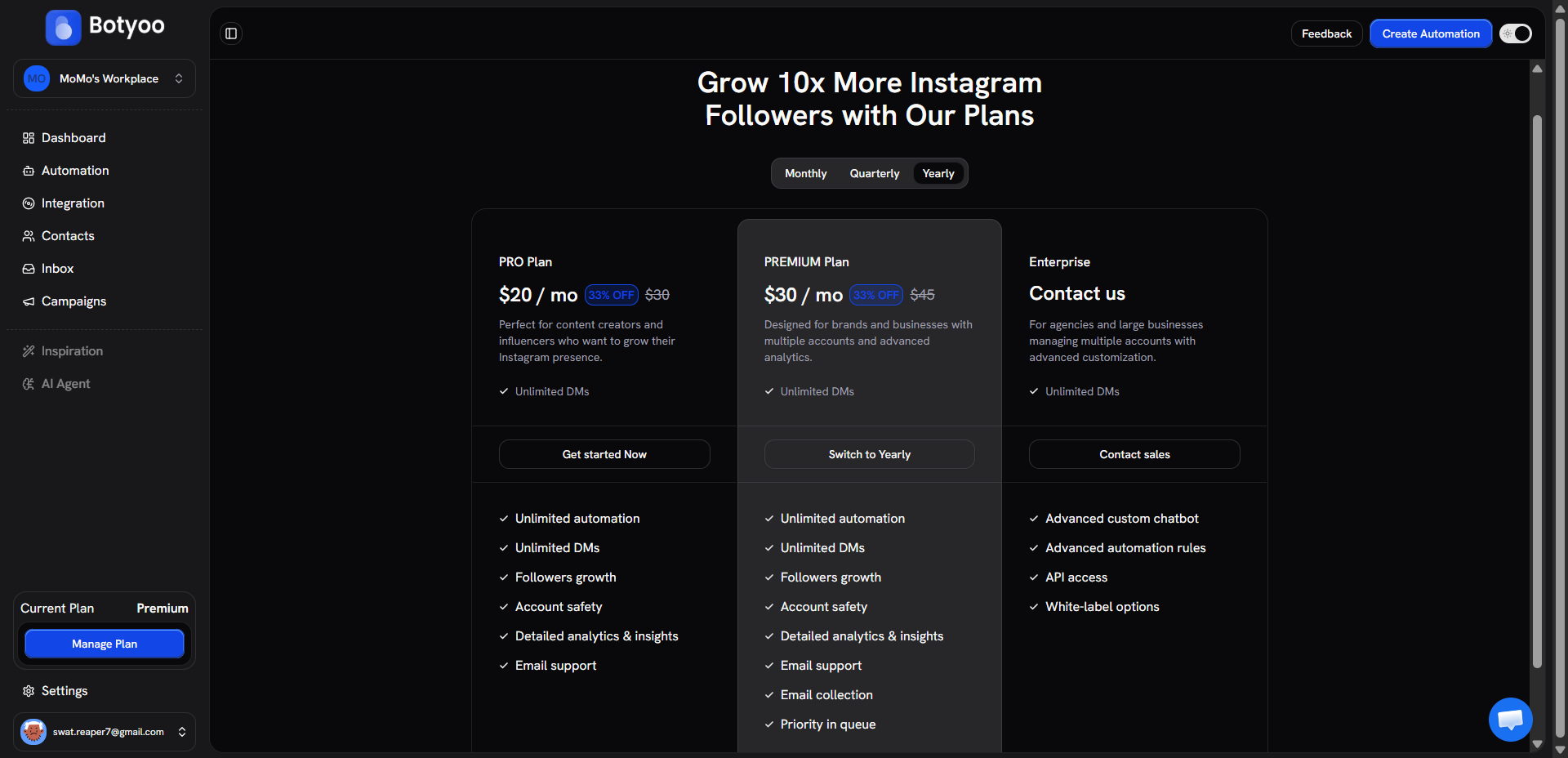
The new plan kicks in immediately. You keep all existing automations, contacts, and inbox history.
Step 4: Switch to annual billing
Yearly billing reduces the effective monthly cost significantly, annual Pro works out to about $3.60/mo. Pick Yearly during upgrade for the discount.
Step 5: View invoices
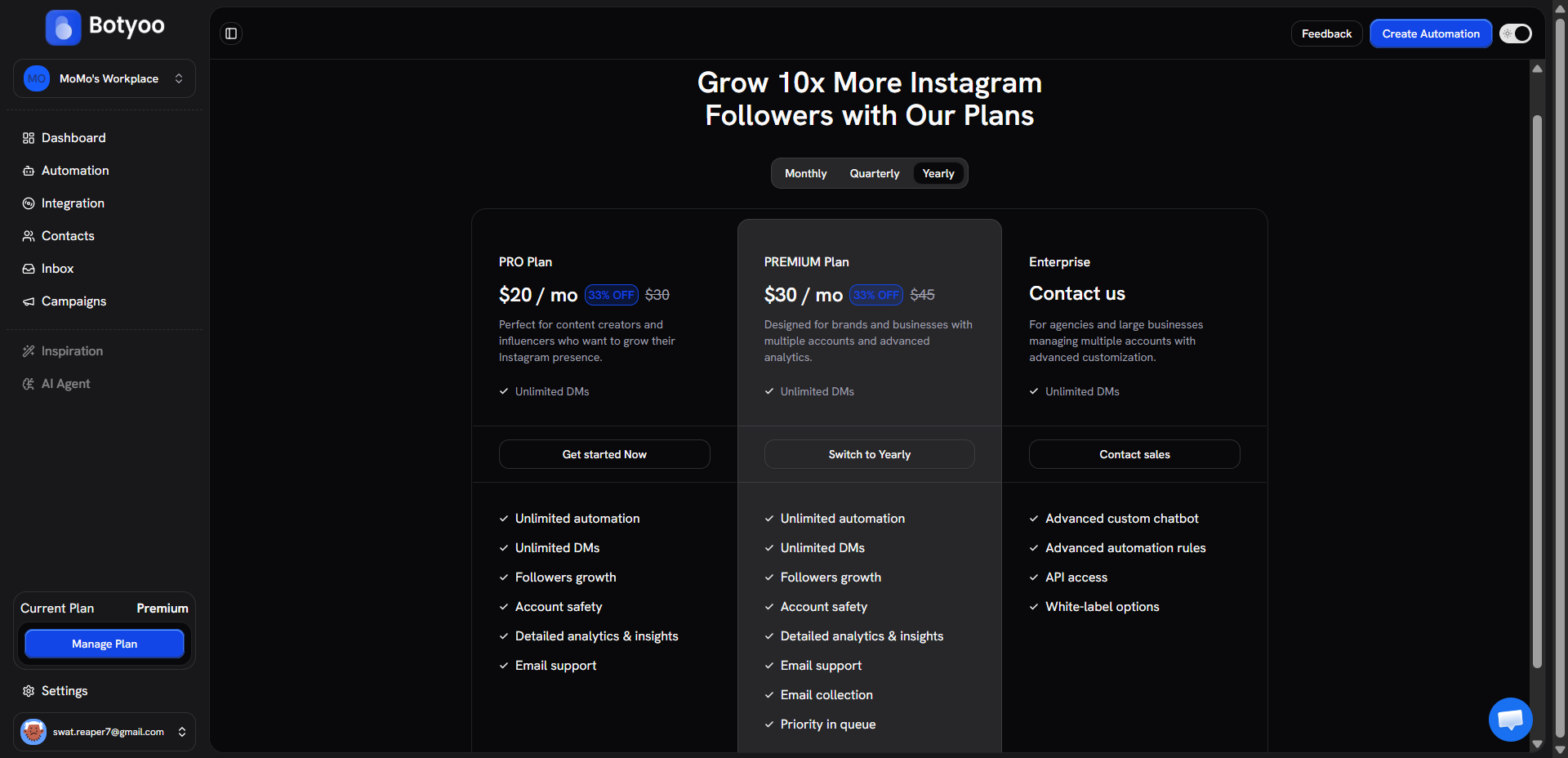
Scroll to the Payments section. Every charge is listed with a downloadable invoice.
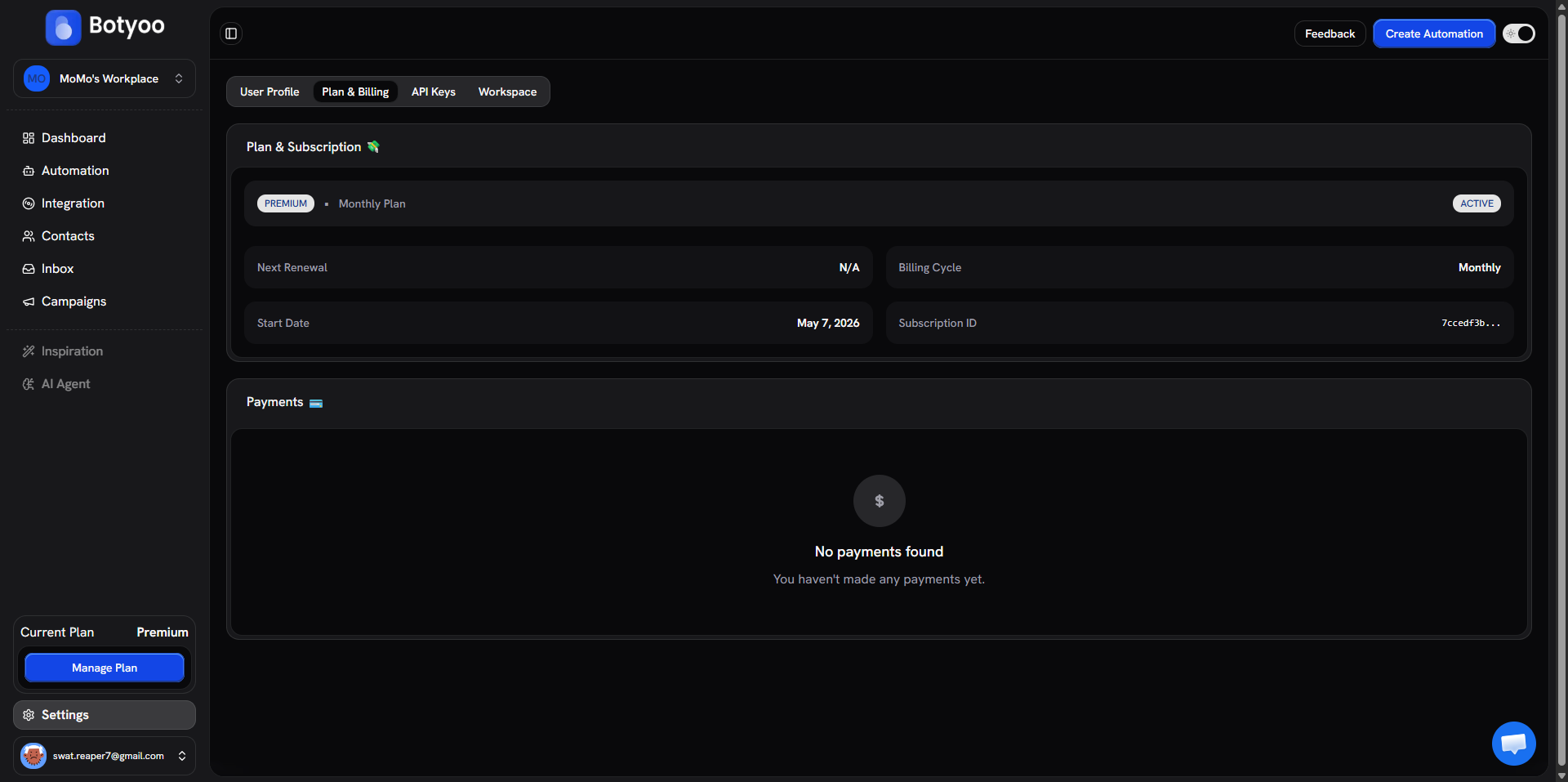
If the section says “No payments found” right after a successful payment, give it up to 24 hours to sync. Contact support if it stays empty.
Step 6: Update payment method
When a card on file is about to expire, the Plan & Billing tab shows an Update payment method button. Click it, enter the new card details in the secure form, and save. The next renewal will use the updated card automatically.
Cancel subscription
Cancellations are handled by the Botyoo support team, there’s no self-serve cancel button in-app right now. Open the 💬 chat widget in the bottom-right corner of any Botyoo page and ask to cancel. The support team confirms within one business day. You keep full access until the end of the current billing period.
What’s next
Was this article helpful?