

Help Center How-To Guides
How to send media in a flow
Send images, videos, audio messages, and files as part of a flow.
On this page
How to send media in a flow
Botyoo flows can send any media type Instagram supports, image, video, voice note, or file.
Step 1: Open the Flow Builder
Open or create a flow.
Step 2: Add a media step
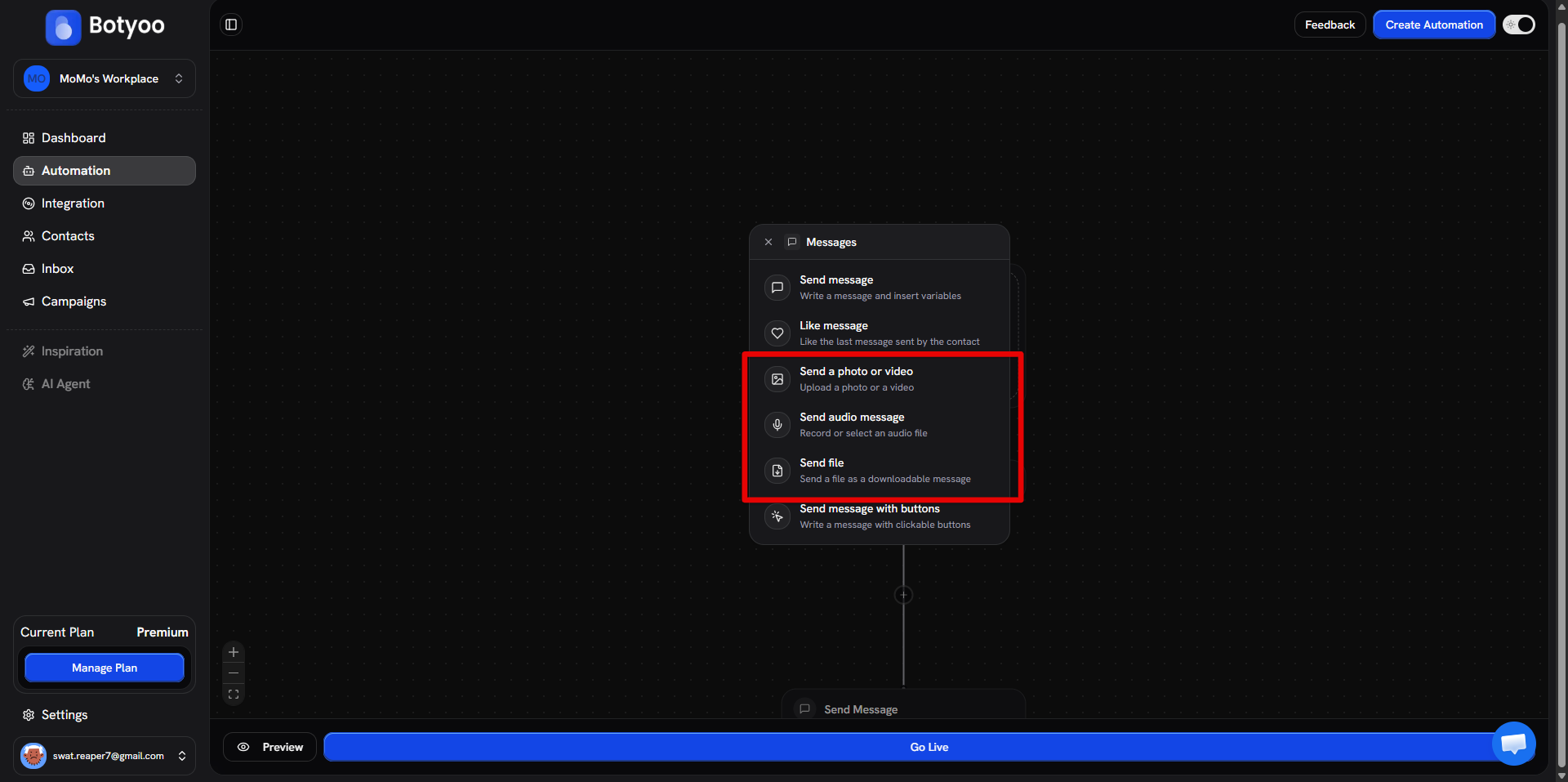
Click + between two steps. The Messages category has four media options:
| Step | What it sends |
|---|---|
| Send a photo or video | Image (JPG/PNG/WebP) or video (MP4) |
| Send audio message | Voice note |
| Send file | Document (PDF, etc.) |
| Send message with image | Text + inline image |
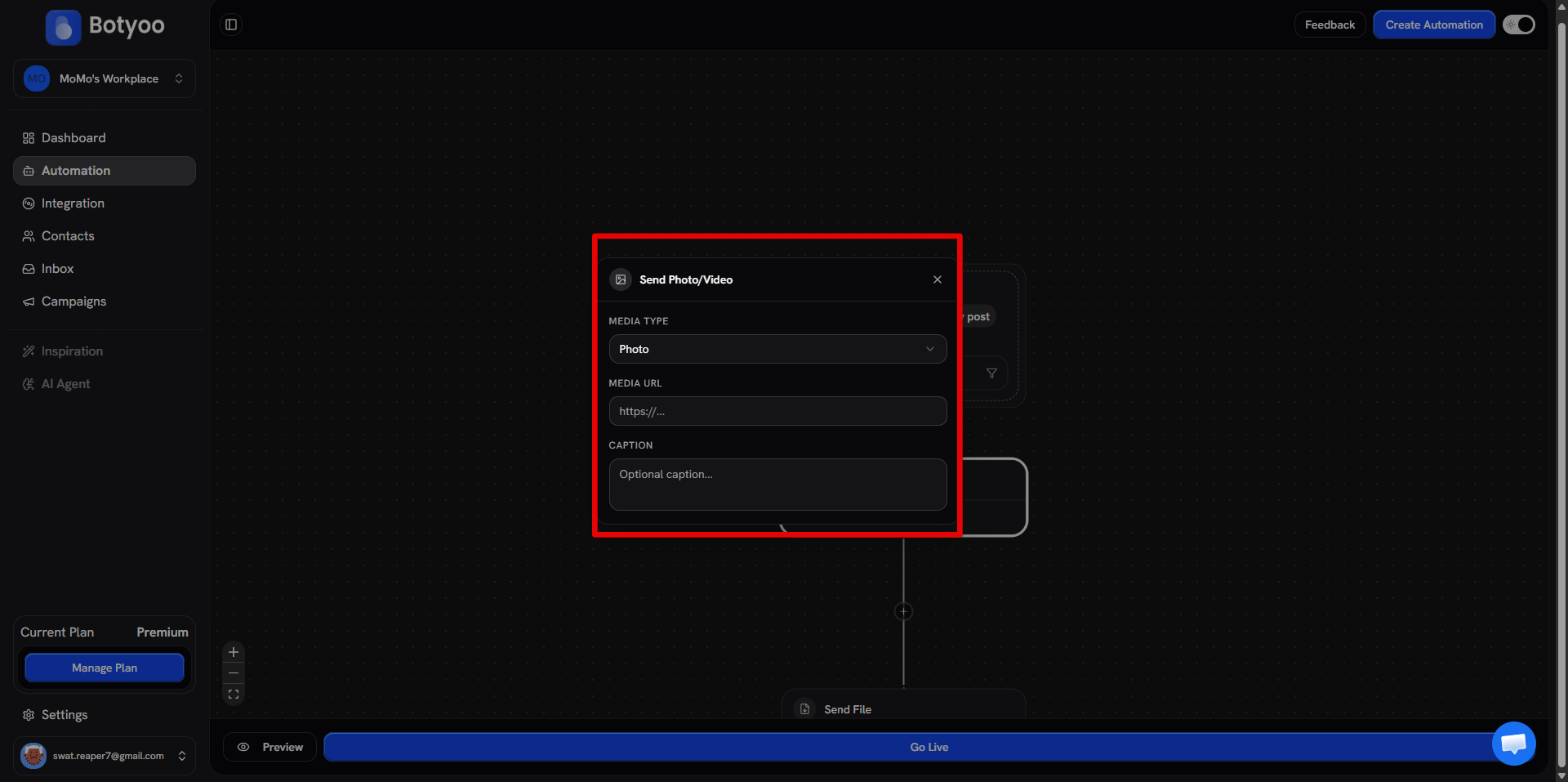
Step 3: Upload the file
Drag and drop, or click Select file, to upload your media.
| Type | Max size | Formats |
|---|---|---|
| Image | 8 MB | JPG, PNG, WebP |
| Video | 25 MB | MP4 |
| Audio | 8 MB | MP3, M4A |
| File | 25 MB | PDF, common docs |
Step 4: Save the flow
The media step lands on the canvas as a card showing a preview thumbnail of the file you uploaded, useful for confirming you grabbed the right asset before activating the flow.
Tips
- Compress images before uploading. Smaller files send faster
- Voice notes feel personal, try them for one-to-one nurture flows
- PDF lead magnets can be sent directly without redirecting to a download page
What’s next
Was this article helpful?